Note! This blog post is a continuation of my series on APEX Human Tasks and APEX Workflows. You can find the previous posts in this series here:
Note! This blog post is intended for those familiar with APEX Human Tasks and APEX Workflows. I assume you know how to create an APEX Human Task, build an APEX Workflow, and create a Workflow Console or Unified Task List page. If you haven’t had the opportunity to use these great features, I encourage you to check out the available blogs on the topic, documentation, or install the sample application called Sample Workflow, Approvals, and Tasks from the Gallery.
When creating a new Human Task, one piece of information you must complete is Participants. Participants are divided into two roles: Potential Owner and Business Administrator. The Potential Owner is the person who may be responsible for executing the task, can claim it (thereby becoming the Actual Owner), and mark the task as completed. The Business Administrator is a person we can call a “superuser.” This role allows administrative management of the task. One of the possibilities for a person with this role is to add a new Potential Owner to the task.
In this blog article, I would like to show you how an Actual Owner can add a new Potential Owner without the privileges intended for the Business Administrator role.
Dynamically changing structures in large organizations, replaceability of people in positions, changes in responsibilities, or prolonged, suddenly appearing employee absences – these are just a few examples that can have a real impact on the execution of a Human Task. In such situations, there is a need to be able to replace the initially assigned person/group of people as a Potential Owner with another person or group of people; without this possibility, the business process carried out using APEX Human Task may get stuck.
Therefore, it’s a good idea to know a solution that allows for the addition of new Potential Owners.
Imagine an application for submitting requests for computer equipment in a company. An employee submits a request, indicates the number of items, and provides the reason why they need them. The request goes to the supervisor, who accepts or rejects it. When the request is accepted, the Office department employee prepares the equipment for collection, and when it is ready, a notification is sent to the requester that the equipment is waiting. The employee goes to the office, the Office employee issues the ordered equipment, and marks in the application that it has been issued.
In the aforementioned application, issuing the equipment is a Human Task (of type Action Task), and the Potential Owners of this task are Office employees. Unfortunately, sometimes it happens that Office employees cannot issue the equipment due to vacations or other time-consuming tasks. In such a situation, they would like to be able to delegate the equipment issuance to any other person in the company with whom they have arranged, and sometimes it may be someone from the HR department, and another time someone else, e.g., an accountant with whom the office employees have very good contact and trust.
Although issuing equipment by a person other than an Office employee is very rare, I would like to have a functionality in this application that allows Office employees to add a new person as a potential owner without the need to grant Office employees the Business Administrator role. Let’s see how we can achieve this.
To present the solution to the problem described above, I created two tables:
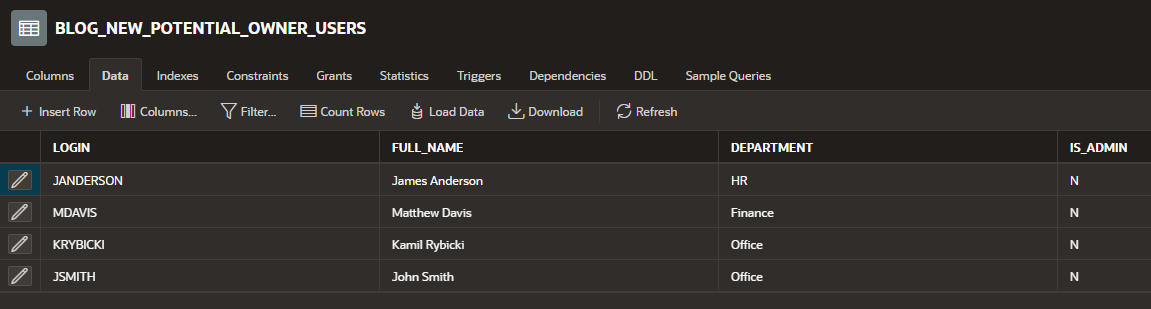
I also created an application in which I created an Action Task type Human Task. Then, I generated the details page for this Human Task by clicking the Create Task Details Page button. Within this task, I also added Potential Owner and Business Administrator based on the query:

I also have a workflow in which one of the steps creates an action task regarding the issuance of equipment to the requester by employees of the Office department.
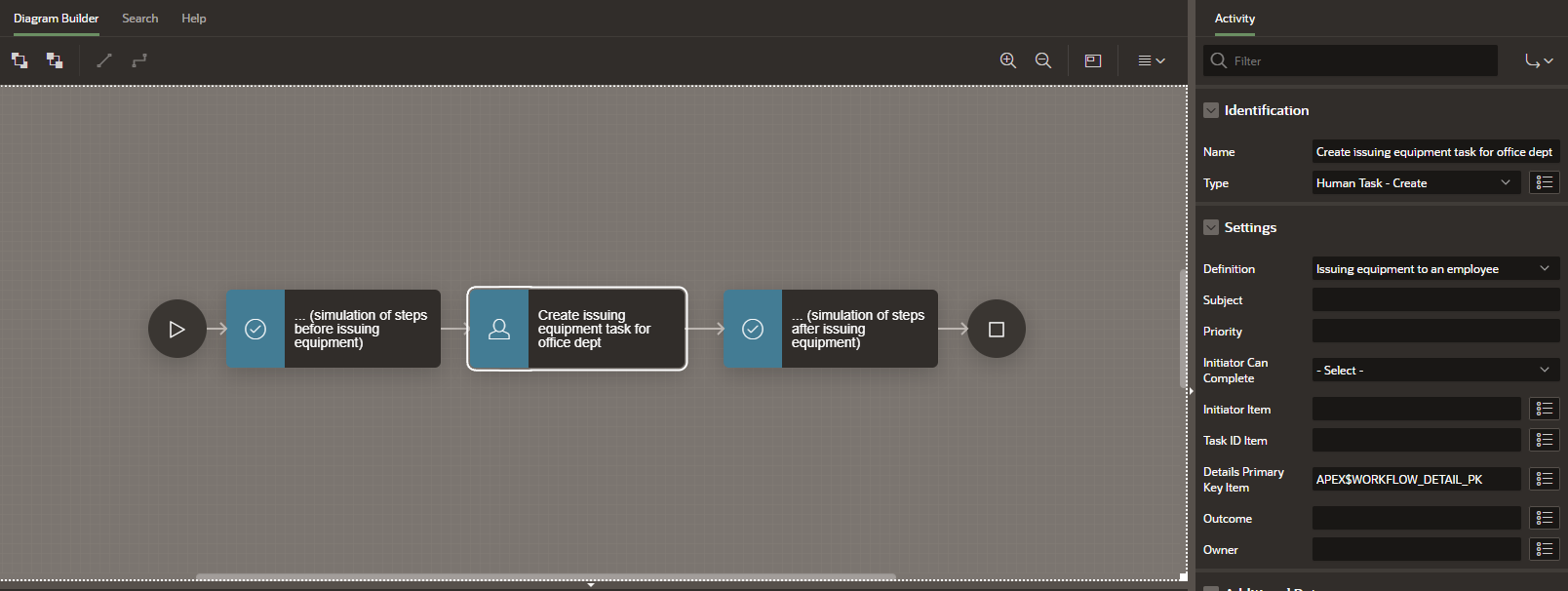
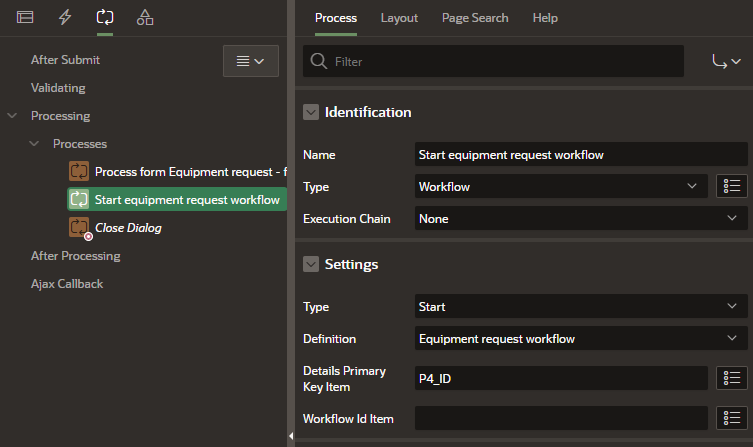
In the application, I also created two pages for handling equipment requests (Interactive Report + Form on the BLOG_NEW_POTENTIAL_OWNER_REQUESTS table). On the form page, I added a process that, after inserting the request data, runs my workflow from the screenshot above using a process type called Workflow.
Finally, I also created a My tasks page as a Unified Task List component (report context: My tasks).
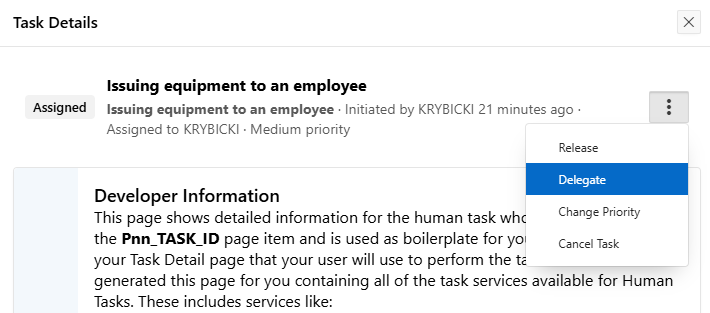
Currently, the details page of my task, which I can access from the My tasks page (after creating a request for equipment and claiming the task by clicking the Claim button), does not allow adding a new potential owner when logged in as an Office department employee. I can delegate the task to colleagues from the Office department, but I cannot delegate this task to people outside the department.
I am ready to add the functionality of adding a new Potential Owner to my task. I would like to temporarily switch the session of the logged-in Office employee to the session of the user who is the Business Administrator of my task. On behalf of this Business Administrator, I will add a new Potential Owner to my task, and then I will restore the session of the logged-in user, simultaneously deleting the “artificial” session of the Business Administrator user.
In my task, I modify the SQL query for the Business Administrator in the Participants section and paste the following query:
select LOGIN from BLOG_NEW_POTENTIAL_OWNER_USERS where IS_ADMIN = 'Y'
union all
select 'MY_SYSTEM_USER' from dual

At this point, my Business Administrators are people who have the IS_ADMIN flag set to Y, and my “system” user named MY_SYSTEM_USER (this user was not created anywhere; the name was invented by me). I will need this system user later.
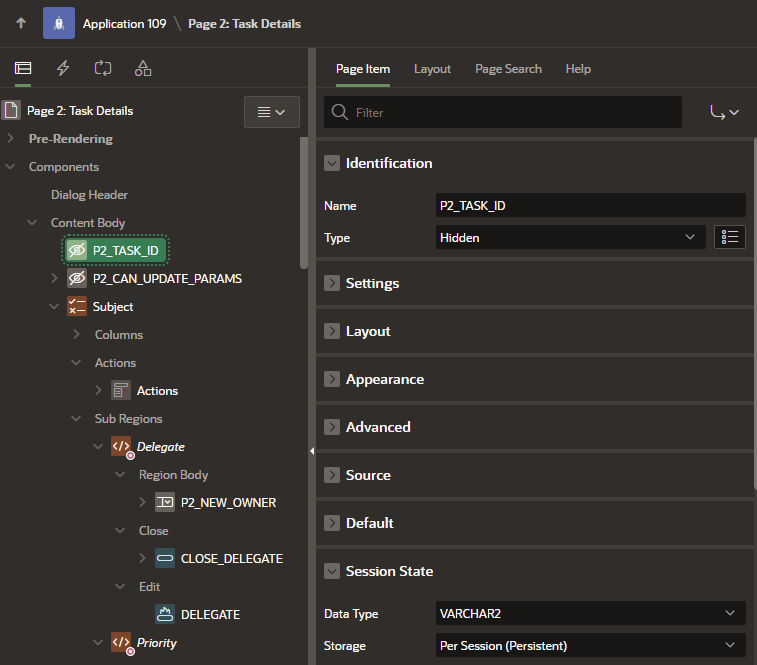
I go to the details page of my Human Task and change the Storage for my item P2_TASK_ID to Per Session (Persistent).
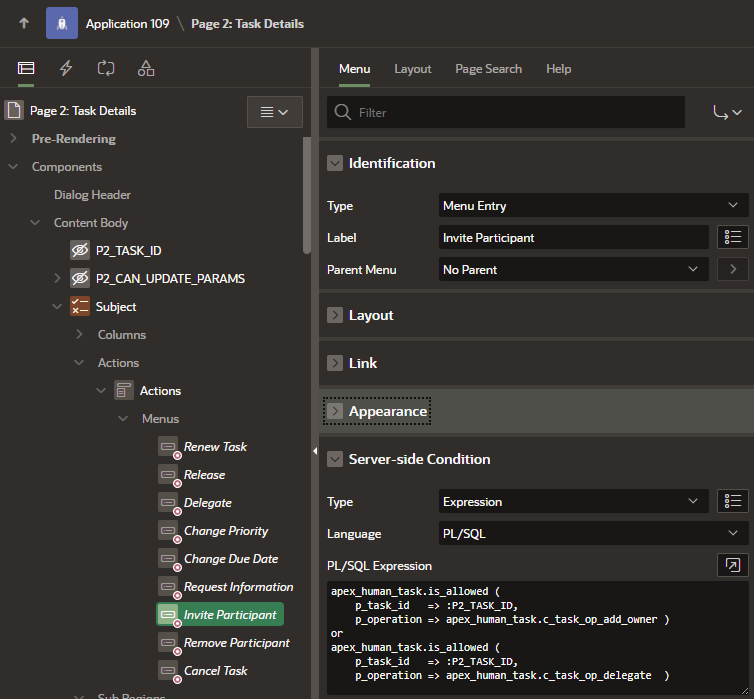
Next, I look for the Actions Menu Entry named Invite Participant. In the Server-side Condition, I change the condition for displaying the Menu Entry because I want this button to be shown to users who have the Business Administrator role or are the Actual Owner and have access to the Delegate action:
apex_human_task.is_allowed (
    p_task_id   => :P2_TASK_ID,
    p_operation => apex_human_task.c_task_op_add_owner )
or
apex_human_task.is_allowed (
    p_task_id   => :P2_TASK_ID,
    p_operation => apex_human_task.c_task_op_delegate  )
I set the same condition for the region named Invite Participant located under the parent region named Subject.
At this point, both the Invite Participant button and the region that appears after clicking this button are also available to the person who is the Business Administrator and the Actual Owner.
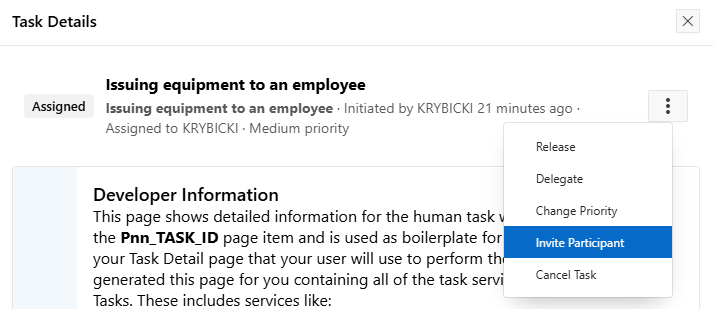
However, we need to remember that if I wanted to add a new participant at this moment while logged in as an Office employee assigned to the task, I would receive an error regarding the lack of permissions because the logged-in user does not have the Business Administrator role.
It’s time to modify the process attached to the Invite Participant button so that the Office employee assigned to the task can add a new Potential Owner. In the process named Invite Participant, which was automatically generated along with the task details page, I change the process name to Invite Participant – process for Business Administrator and set the following properties in the Server-side Condition:
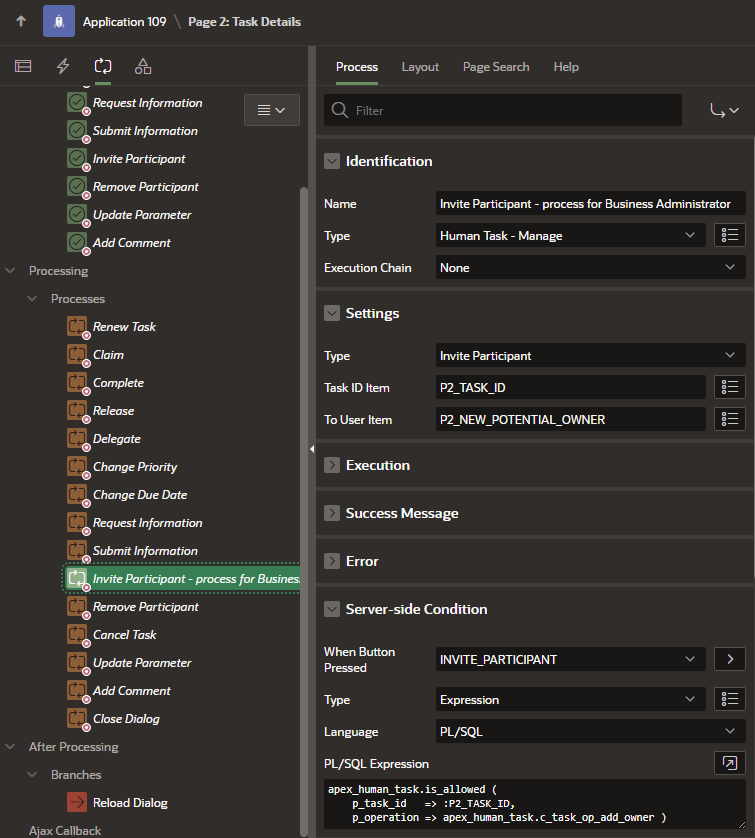
Thanks to this, this process will only execute when a Business Administrator of the task tries to add a new Potential Owner.
Next, I duplicate this process, creating a new one, name it Invite Participant – process for Actual Owner, and change the PL/SQL Expression code in the Server-side Condition to the following:
not apex_human_task.is_allowed (
    p_task_id   => :P2_TASK_ID,
    p_operation => apex_human_task.c_task_op_add_owner )
and
apex_human_task.is_allowed (
    p_task_id   => :P2_TASK_ID,
    p_operation => apex_human_task.c_task_op_delegate )
I also modify the type of this process. I set Execute Code and paste the following PL/SQL code:
declare
  l_logged_user_app_session       number;
  l_my_system_user_app_session    number;
BEGIN
    -- Keep logged user session
    l_logged_user_app_session := :APP_SESSION;

    -- Create APEX session as MY_SYSTEM_USER who is a Business Administrator for my task
    APEX_SESSION.CREATE_SESSION (p_app_id   => :APP_ID,
                                 p_page_id  => :APP_PAGE_ID,
                                 p_username => 'MY_SYSTEM_USER');

    -- Keep Business Administrator session to delete it later
    l_my_system_user_app_session := :APP_SESSION;

    -- Add new potential owner as Business Administrator (MY_SYSTEM_USER)
    APEX_HUMAN_TASK.ADD_TASK_POTENTIAL_OWNER (
          p_task_id           => :P2_TASK_ID,
          p_potential_owner   => :P2_NEW_POTENTIAL_OWNER
    );

    -- Detach Business Administrator session
    APEX_SESSION.DETACH;

    -- Delete Business Administrator session
    APEX_SESSION.DELETE_SESSION (
        p_session_id  =>  l_my_system_user_app_session
    );

    -- Attach logged user session again
    APEX_SESSION.ATTACH (
        p_app_id     => :APP_ID,
        p_page_id    => :APP_PAGE_ID,
        p_session_id => l_logged_user_app_session
    );
EXCEPTION
    WHEN OTHERS THEN
        -- Error handling...
        raise;
END;
Let’s summarize what happened here. To the Human Task definition, I added a new “technical” user who is a Business Administrator and named him MY_SYSTEM_USER. This user, even though he does not exist and was invented by me, will have access to all functionalities provided for the task’s Business Administrator the moment I create an APEX session for him.
Next, I modified the visibility of the Invite Participant button and the region displayed after pressing it. Both page components are now visible to the Business Administrator and the Actual Owner.
Finally, I duplicated the Invite Participant process. The first one was intended for a person who has the Business Administrator role, then the native Invite Participant process is executed. The second one was written by me from scratch and was made available to a person who does not have the Business Administrator role but is the Actual Owner of the task (Office department employee).
The created process detaches the active session of the Office employee, creates a session for the MY_SYSTEM_USER, adds the new potential owner, cleans up after itself, and finally reattaches the Office employee’s session.
I add a new request for equipment that starts the workflow. A task has been created and assigned to the Office department (users KRYBICKI and JSMITH). None of the users I have in the BLOG_NEW_POTENTIAL_OWNER_USERS table is a Business Administrator.
Logged in as KRYBICKI (one of the Office employees), I claim the task to become the Actual Owner. I check who I can delegate the task to, and I only see JSMITH, a colleague from the Office department.
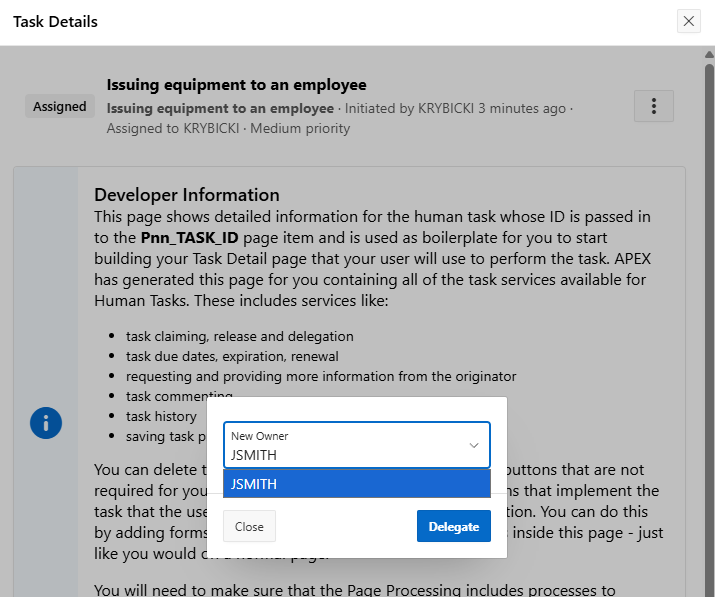
I close the delegation window and click the Invite Participant option from the menu, enter the name of the user who is an employee of the Finance department, and then click the Invite Participant button.
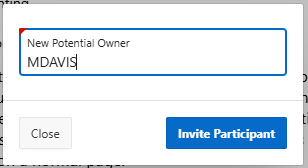
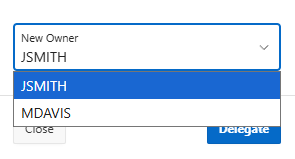
I receive confirmation that a new potential owner has been successfully added, so I click the Delegate option again and check if MDAVIS appeared on the list as a Potential Owner to whom I can delegate the task. He is indeed on the list, so I can delegate this task to him.
I log in to the MDAVIS user account and see the task on the My Tasks page. I can now complete it by clicking the Complete button, and I do so.
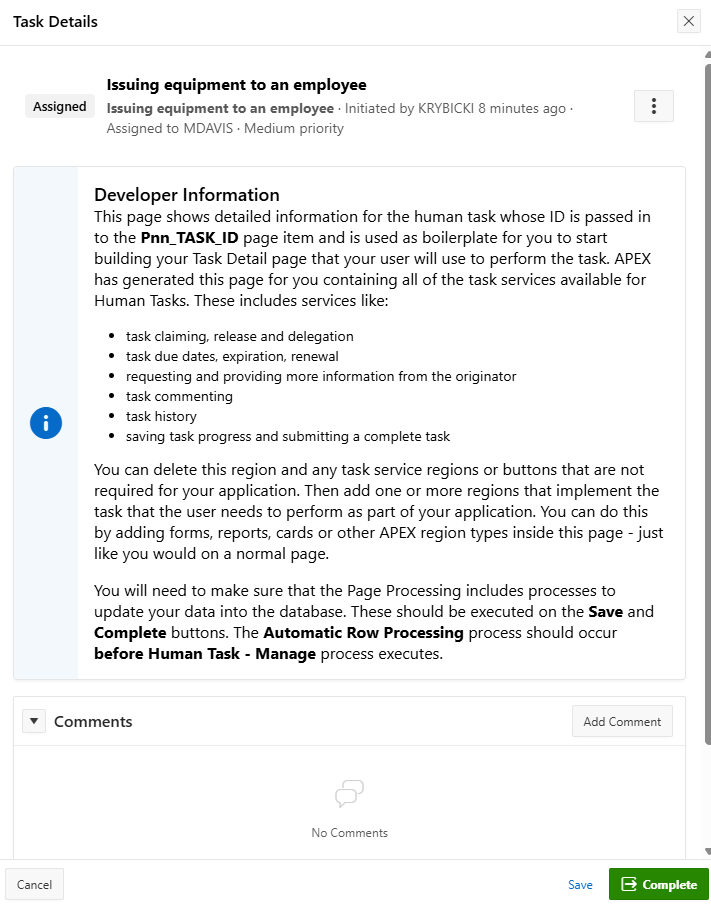
Everything works as expected. The user MDAVIS, an employee of the Finance department, issued the equipment to the requester once, as an exception, because the Office team could not do it, and transferred the task to him.
After applying a few changes to the pages generated by APEX, I am able to assign a Human Task to a person who was not initially defined on the list of potential owners. What’s more, I can do this while logged in as a user who does not have Business Administrator privileges, using a workaround with creating a “technical” session, which is immediately deleted after performing the appropriate action.
The APEX team, by creating the Business Administrator role, ensured that unauthorized users could not interfere with Human Tasks. This is a very good approach due to the security of tasks and protection against task manipulation. Sometimes, however, the lack of Business Administrator privileges blocks us from performing some operations that we would like to carry out as part of our business process. In this article, I showed how we can bypass such blockades.
If you’re interested in more APEX-related content, check out some of the other articles on the Pretius blog: