Note! This blog article is a continuation of my series on APEX Human Tasks and APEX Workflows. You can find the previous post in this series here.
This article is intended for those familiar with APEX Human Tasks and APEX Workflows. I assume you know how to create an APEX Human Task, build an APEX Workflow, and create a Workflow Console or Unified Task List page. If you haven’t had the opportunity to use these great features, I encourage you to check out the available blog posts on the topic, documentation, or install the sample application called Sample Workflow, Approvals, and Tasks from the Gallery.
By default, APEX 24.2 does not support creating two or more APEX Human Tasks simultaneously. When using the Human Task -> Create activity in a workflow, the process creates a single Human Task and then waits for its completion. Only once the Human Task is completed does the workflow proceed to the next step.
In this blog post, I would like to show you how to create parallel APEX Human Tasks within the same Workflow step.
Imagine a scenario in a large organization where authorized employees can request the purchase of a new tool, such as a new data analytics platform, that will benefit multiple team members. In such companies, purchasing a tool is rarely a decision made by a single person. Instead, the request requires approval from several people from different departments, each evaluating it from a distinct perspective.
In our example, let’s assume that a purchase request requires approval from both the Finance Department (of the employee’s respective unit) and the IT Security Department. Finance verifies the budget, while IT Security evaluates the tool for compliance and security standards.
Since this process can be time-consuming, we want to avoid creating tasks sequentially – where we must wait for one department’s approval before notifying the next. To optimize the process, we want to create these tasks simultaneously, giving each department the same amount of time to perform their verification.
If the request is rejected by any one of the departments, the pending task for the other department should be automatically canceled.
Before I show you how to create two tasks in parallel within the same workflow step, let me present the current state of the application.
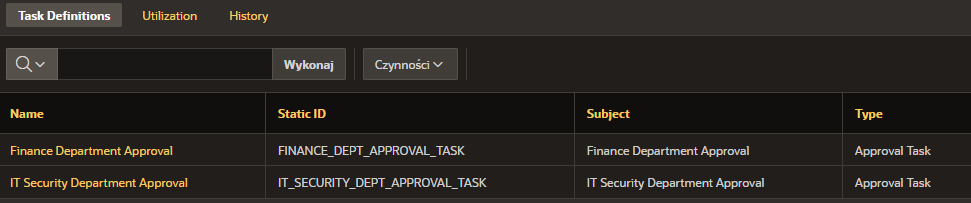
I’ve created two APEX Human Tasks of the Approval Task type in the application. Each task has an APEX_WORKFLOW_ID parameter added, a task details page automatically generated by clicking the Create Task Details Page button, and participants added – Potential Owner and Business Administrator.
I’ve also created a workflow called My Parallel Approval Workflow, which currently doesn’t include steps related to creating Approval Tasks. It consists of simulating pre-approval and post-approval steps. My goal is to add functionality that will create parallel tasks and logic for rejecting one task and approving two.

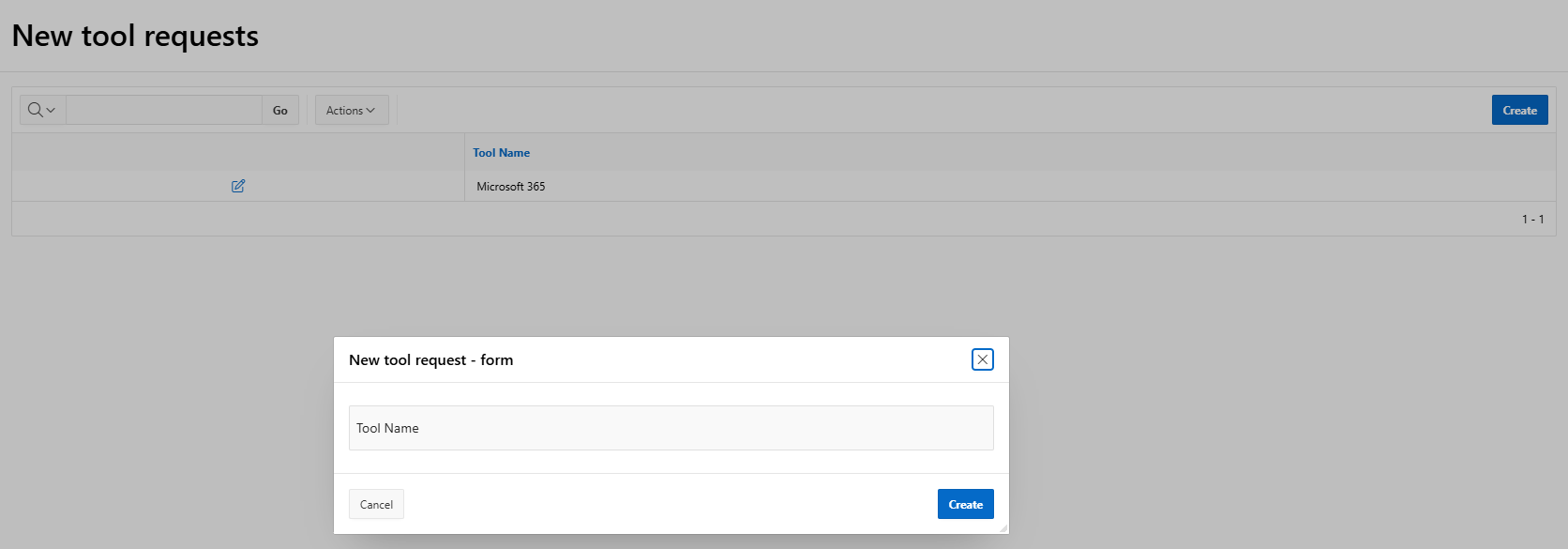
I also created a very simple report with a form that allows me to request a new tool, thus triggering my workflow.
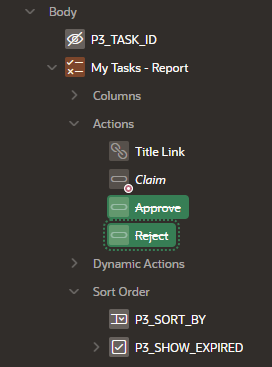
I also generated a My Tasks page as a Unified Task List component. On this My Tasks page, I excluded the visibility of two buttons that allow you to accept or reject a task approval without having to go to the details page. I did this to simplify the example I want to show you in this blog article.
Finally, I also have an Admin workflows page that was created as a Workflow Console component.
It’s time to implement changes that will allow two tasks to be created in parallel and then the result to be handled depending on whether the task is approved or rejected.
In the workflow, I remove my temporary activity called TODO – parallel approval functionality. Instead, I add a new Execute Code step called Create Human Tasks for both IT and finance departments. This step will execute the following PL/SQL, which creates Human Tasks with the APEX_WORKFLOW_ID parameter, which holds the ID of the workflow instance within which the task was created:
declare
   l_task_id    number;
begin
    l_task_id := apex_human_task.create_task(
        p_application_id     => :APP_ID,
        p_task_def_static_id => 'FINANCE_DEPT_APPROVAL_TASK',
        p_detail_pk          => :APEX$WORKFLOW_DETAIL_PK,
        p_parameters => apex_human_task.t_task_parameters(
            1 => apex_human_task.t_task_parameter(static_id => 'APEX_WORKFLOW_ID', string_value => :APEX$WORKFLOW_ID)
        )
    );

    l_task_id := apex_human_task.create_task(
        p_application_id     => :APP_ID,
        p_task_def_static_id => 'IT_SECURITY_DEPT_APPROVAL_TASK',
        p_detail_pk          => :APEX$WORKFLOW_DETAIL_PK,
        p_parameters => apex_human_task.t_task_parameters(
            1 => apex_human_task.t_task_parameter(static_id => 'APEX_WORKFLOW_ID', string_value => :APEX$WORKFLOW_ID)
        )
    );
exception
    when others then
        -- Error handling...
        raise;
end;
The above step won’t pause the workflow (as it does with the Human Task – Create activity), but will execute, and the process will continue. Therefore, I need to ensure that the process is paused until the Human Tasks are completed, as the further logic of my process depends on the results of the Human Tasks.
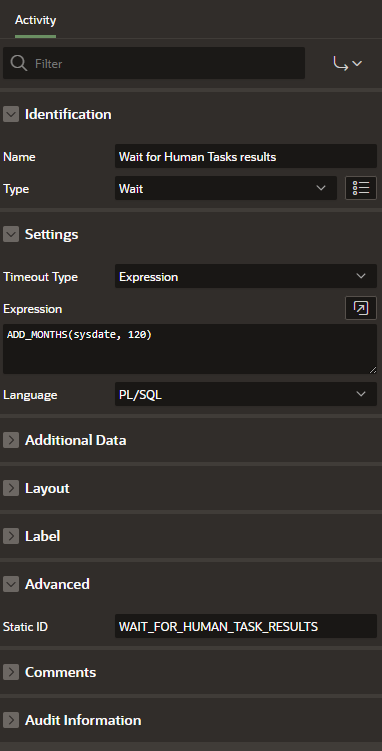
So, as the next step, I add a Wait step. In the Timeout Type field, I select Expression and enter a deadline that is very far in the future and sufficient to ensure that I get the result from my tasks (in other words, I’m sure the tasks will be completed before this deadline). In my case, this is the current date + 10 years. In the Expression field, I enter the value ADD_MONTHS(sysdate, 120).
I also set the Static ID for my action to WAIT_FOR_HUMAN_TASK_RESULTS, and after these changes, it looks like this:
Now I add a Switch activity that will check if any tasks have been completed with the REJECTED outcome. I set the following properties for this step:
select 1
  from APEX_TASKS
 where DETAIL_PK = :APEX$WORKFLOW_DETAIL_PK
   and TASK_DEF_STATIC_ID in ('FINANCE_DEPT_APPROVAL_TASK', 'IT_SECURITY_DEPT_APPROVAL_TASK')
   and OUTCOME_CODE = 'REJECTED'
If my check returns true, it means one of the approval tasks has been rejected. If it returns false, it means both approval tasks have been accepted, and the request can continue.
So I create the appropriate connections (I name the true one Yes, task rejected and the false one No, both approved). For the true path, I add an additional activity called … (simulation of steps in case of rejection).
To summarize this section, I added steps to the process that create Human Tasks, followed by a Wait activity, which pauses the process until the tasks are completed or canceled. Once the tasks are completed, a check is made to see if any of the tasks have been rejected, and the process splits into two separate paths.
My process now looks as follows:

Now all I need is the logic that will decide when a process waiting for a Wait activity should continue. So, I’ll move on to implementing that logic.
In the Use Case section, I’ve defined two approval tasks – one for the IT department and one for the finance department. For example, if the IT department rejects the request, the approval task for the finance department is canceled because it doesn’t need their opinion, since one of the departments has already rejected my request.
I have three possible scenarios with the actions to be performed:
Now, it’s time for implementation.
On the automatically generated task details page for the IT department (which, as a reminder, was created by clicking the Create Task Details Page button while defining the Human Task), I’m adding a new process to handle task rejection logic, which will execute after the automatically generated process named Reject. This process has the following properties:
declare
    l_tool_request_id            APEX_TASKS.DETAIL_PK%type;
    l_finance_dept_task_id       APEX_TASKS.TASK_ID%type;
    l_finance_dept_state_code    APEX_TASKS.STATE_CODE%type;
    l_workflow_id                APEX_TASK_PARAMETERS.PARAM_VALUE%type;
    l_workflow_activity_params   wwv_flow_global.vc_map;
begin
    -- Fetch new tool request ID and workflow instance ID from task parameter
    select at.DETAIL_PK
          ,atp.PARAM_VALUE
      into l_tool_request_id
          ,l_workflow_id
      from APEX_TASKS           at
      join APEX_TASK_PARAMETERS atp on at.TASK_ID = atp.TASK_ID
     where at.TASK_ID = :P8_TASK_ID
       and atp.PARAM_STATIC_ID = 'APEX_WORKFLOW_ID';

    -- Based on new tool request ID, find task ID and state code for Finance Department
    select TASK_ID
          ,STATE_CODE
      into l_finance_dept_task_id
          ,l_finance_dept_state_code
      from APEX_TASKS
     where DETAIL_PK = l_tool_request_id
       and TASK_DEF_STATIC_ID = 'FINANCE_DEPT_APPROVAL_TASK';

    -- Cancel task for Finance Department if it's not been completed yet
    if l_finance_dept_state_code not in ('COMPLETED', 'ERRORED') then
        apex_human_task.cancel_task(
            p_task_id => l_finance_dept_task_id
        );
    end if;

    -- Continue Wait activity in workflow
    apex_workflow.continue_activity(
        p_instance_id          => l_workflow_id,
        p_static_id            => 'WAIT_FOR_HUMAN_TASK_RESULTS',
        p_activity_params      => l_workflow_activity_params
    );
exception
    when others then
        -- Error handling...
        raise;
end;
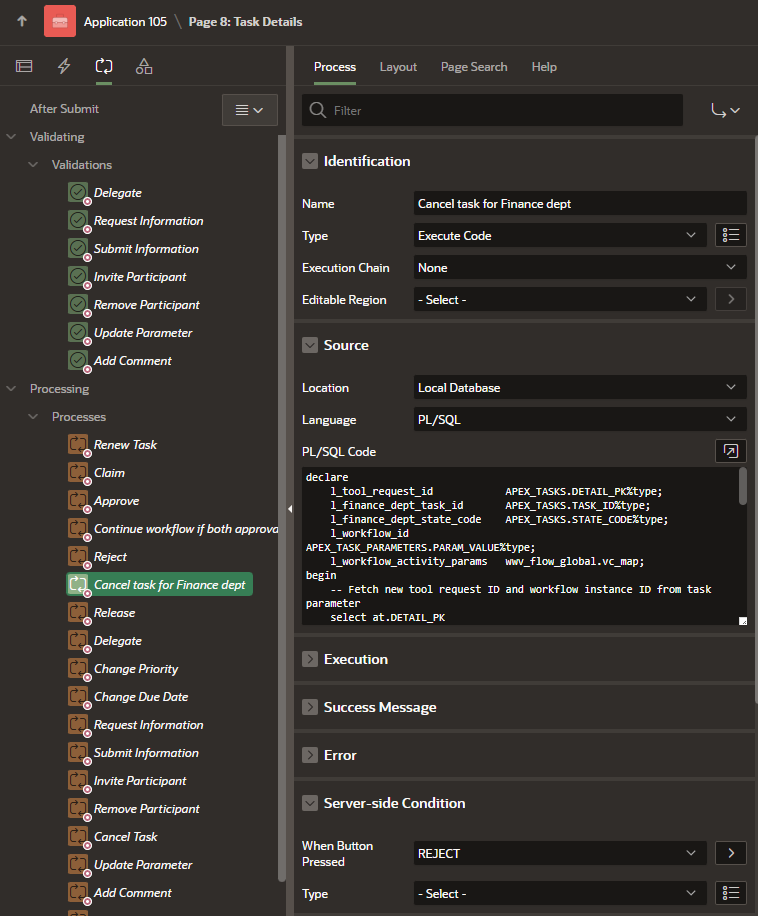
This process cancels tasks for the Finance Department (unless the task has already been approved) when the approval task is rejected by the IT Security Department. After the task is canceled, the workflow process will continue.
Note! According to the documentation for the APEX_HUMAN_TASK.CANCEL_TASK procedure, a task can only be canceled by its initiator or Business Administrator. Therefore, to cancel a task for the IT Security Department when the Finance Department rejects the approval task, you must add the Potential Owners from the Finance Department approval task as Business Administrators in the IT Security Department approval task. The second option is to temporarily switch the APEX session to a user with the appropriate permissions – I’ll cover this workaround in the next blog post in the series.
Now, I add a process responsible for continuing the workflow if both approval tasks are approved. The process will be added after an automatically generated process named Approve. It has the following properties:
declare
    l_tool_request_id            APEX_TASKS.DETAIL_PK%type;
    l_finance_dept_outcome_code  APEX_TASKS.OUTCOME_CODE%type;
    l_workflow_id                APEX_TASK_PARAMETERS.PARAM_VALUE%type;
    l_workflow_activity_params   wwv_flow_global.vc_map;
begin
    -- Fetch new tool request ID and workflow instance ID from task parameter
    select at.DETAIL_PK
          ,atp.PARAM_VALUE
      into l_tool_request_id
          ,l_workflow_id
      from APEX_TASKS           at
      join APEX_TASK_PARAMETERS atp on at.TASK_ID = atp.TASK_ID
     where at.TASK_ID = :P8_TASK_ID
       and atp.PARAM_STATIC_ID = 'APEX_WORKFLOW_ID';

    -- Based on new tool request ID, find task outcome for Finance Department
    select OUTCOME_CODE
      into l_finance_dept_outcome_code
      from APEX_TASKS
     where DETAIL_PK = l_tool_request_id
       and TASK_DEF_STATIC_ID = 'FINANCE_DEPT_APPROVAL_TASK';

    -- Continue Wait activity in workflow if outcome is APPROVED
    if l_finance_dept_outcome_code = 'APPROVED' then
        apex_workflow.continue_activity(
            p_instance_id          => l_workflow_id,
            p_static_id            => 'WAIT_FOR_HUMAN_TASK_RESULTS',
            p_activity_params      => l_workflow_activity_params
        );
    end if;
exception
    when others then
        -- Error handling...
        raise;
end;
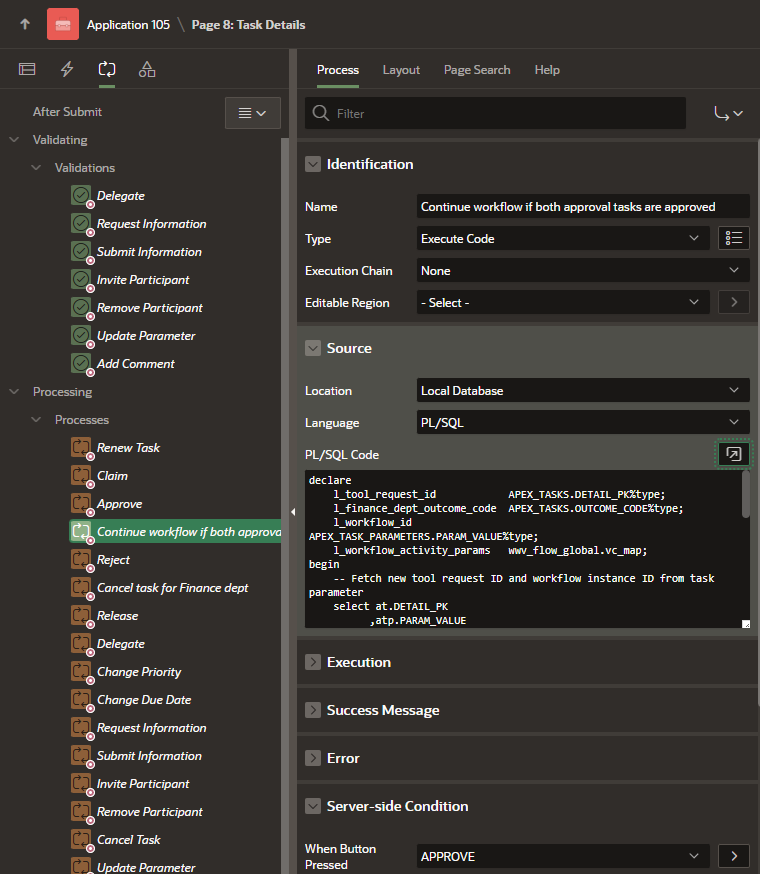
This process will move my workflow forward if the approval task for the Finance Department has already been accepted.
On the task details page for the finance department, I also add two processes that are very similar and perform the same actions, only in relation to the IT Security department.
The first one has the following properties:
declare
    l_tool_request_id             APEX_TASKS.DETAIL_PK%type;
    l_it_security_dept_task_id    APEX_TASKS.TASK_ID%type;
    l_it_security_dept_state_code APEX_TASKS.STATE_CODE%type;
    l_workflow_id                 APEX_TASK_PARAMETERS.PARAM_VALUE%type;
    l_workflow_activity_params    wwv_flow_global.vc_map;
begin
    -- Fetch new tool request ID and workflow instance ID created for this request
    select at.DETAIL_PK
          ,atp.PARAM_VALUE
      into l_tool_request_id
          ,l_workflow_id
      from APEX_TASKS           at
      join APEX_TASK_PARAMETERS atp on at.TASK_ID = atp.TASK_ID
     where at.TASK_ID = :P2_TASK_ID
       and atp.PARAM_STATIC_ID = 'APEX_WORKFLOW_ID';

    -- Based on new tool request ID, find task ID and state code for IT Security Department
    select TASK_ID
          ,STATE_CODE
      into l_it_security_dept_task_id
          ,l_it_security_dept_state_code
      from APEX_TASKS
     where DETAIL_PK = l_tool_request_id
       and TASK_DEF_STATIC_ID = 'IT_SECURITY_DEPT_APPROVAL_TASK';

    -- Cancel task for IT Security Department if it's not been completed yet
    if l_it_security_dept_state_code not in ('COMPLETED', 'ERRORED') then
        apex_human_task.cancel_task(
            p_task_id => l_it_security_dept_task_id
        );
    end if;

    -- Continue Wait activity in workflow
    apex_workflow.continue_activity(
        p_instance_id          => l_workflow_id,
        p_static_id            => 'WAIT_FOR_HUMAN_TASK_RESULTS',
        p_activity_params      => l_workflow_activity_params
    );
exception
    when others then
        -- Error handling...
        raise;
end;
The second process has the following properties:
declare
    l_tool_request_id                APEX_TASKS.DETAIL_PK%type;
    l_it_security_dept_outcome_code  APEX_TASKS.OUTCOME_CODE%type;
    l_workflow_id                    APEX_TASK_PARAMETERS.PARAM_VALUE%type;
    l_workflow_activity_params       wwv_flow_global.vc_map;

begin
    -- Fetch new tool request ID and workflow instance ID from task parameter
    select at.DETAIL_PK
          ,atp.PARAM_VALUE
      into l_tool_request_id
          ,l_workflow_id
      from APEX_TASKS           at
      join APEX_TASK_PARAMETERS atp on at.TASK_ID = atp.TASK_ID
     where at.TASK_ID = :P2_TASK_ID
       and atp.PARAM_STATIC_ID = 'APEX_WORKFLOW_ID';

    -- Based on new tool request ID, find task outcome for IT Security Department
    select OUTCOME_CODE
      into l_it_security_dept_outcome_code
      from APEX_TASKS
     where DETAIL_PK = l_tool_request_id
       and TASK_DEF_STATIC_ID = 'IT_SECURITY_DEPT_APPROVAL_TASK';

    -- Continue Wait activity in workflow if outcome is APPROVED
    if l_it_security_dept_outcome_code = 'APPROVED' then
        apex_workflow.continue_activity(
            p_instance_id          => l_workflow_id,
            p_static_id            => 'WAIT_FOR_HUMAN_TASK_RESULTS',
            p_activity_params      => l_workflow_activity_params
        );
    end if;
exception
    when others then
        -- Error handling...
        raise;
end;
I verified three scenarios:
Each of these scenarios was successful and followed the intended path, so my changes worked.
Although APEX version 24.2 doesn’t natively support parallel task creation, we can still create this functionality ourselves. Creating human tasks is very easy – we simply call the appropriate API function as one of the workflow steps. Preparing the logic that will “push” our workflow forward at the right moment is a bit more demanding, but I hope this article has shown you that it’s not that complicated and entirely achievable.
In the next article in this series, I’ll describe how we can bypass the need to grant Business Administrator privileges to people who shouldn’t have them, but who are needed because our business process involves performing actions available only to the Business Administrator. If you’re interested in more APEX-related content, check out the other articles on the Pretius blog: