Welcome to part 3 of the series: non-AI components in APEX 26.1. In this article, we’ll focus on smaller changes that are also worth mentioning. If you’ve been using APEX for a few years, you’ll notice a lot of changes both in App Builder and in the app itself. Here are a few of them:
Now, when creating a new component, you’ll notice that it’s immediately assigned a Static ID associated with the component’s name. Additionally, a lock has appeared next to the component in this section, allowing the user to change its name if necessary.
Let’s see how it works:
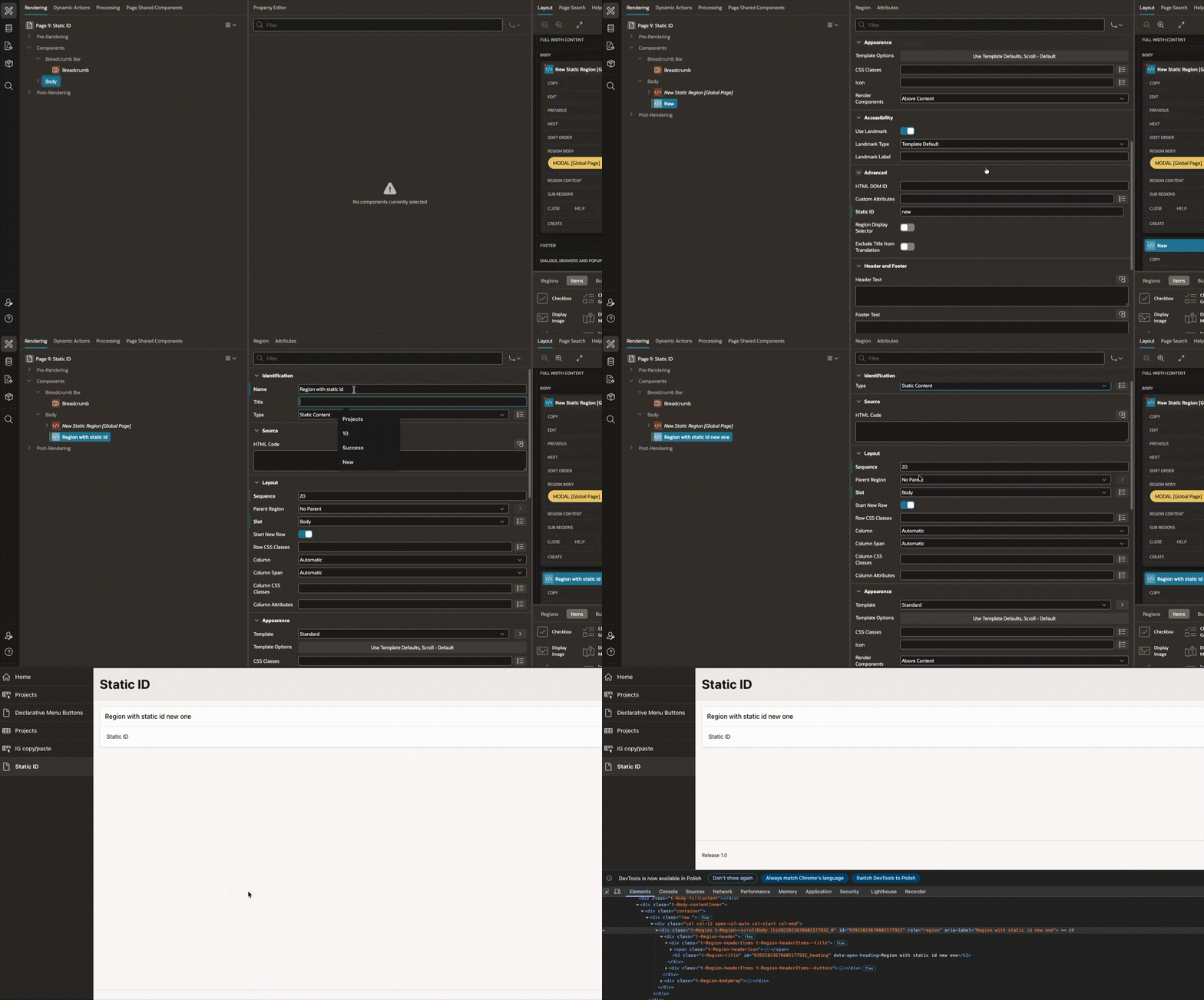
What do we see in the presented GIF? The Static ID has indeed been assigned, but we still can’t use it in the HTML DOM section. Why is this happening? As we can see in the Oracle documentation.

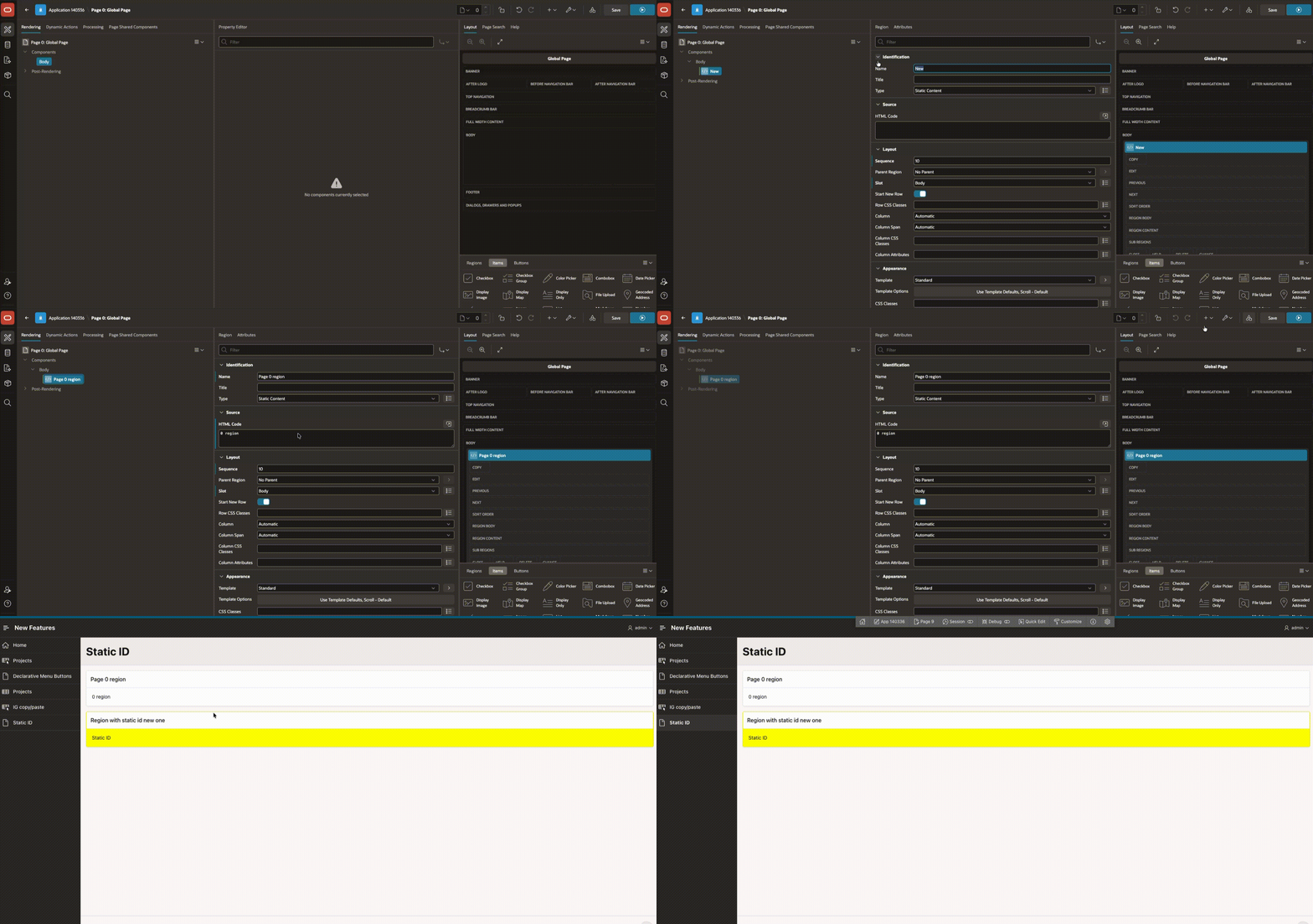
What if we wanted to add even simple CSS to this region using our newly assigned Static ID? Let’s take a look at what we have on the APP Builder side:
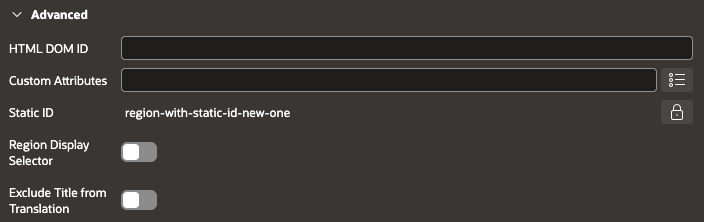
To make our simple CSS work:
#region-with-static-id-new-one {
    background-color: yellow;
}
You should use the HTML DOM ID section, just copy the name of our Static ID to this section, then looking in the console we will see that from the ID assigned by APEX, we will be able to use our newly assigned Static ID:

Now in HTML DOM it looks like this:

And our simple CSS works fine!
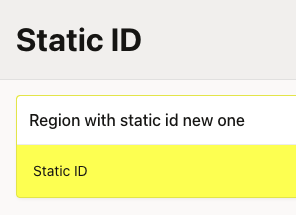
Useful, although it would be nice to have the option to also fill in the HTML DOM ID field when a new object is created (maybe in the next version).
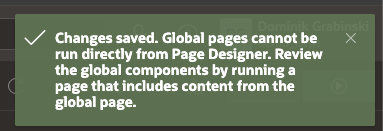
Remember that notification when you wanted to change something on page 0 or a modal page?
Now you can see a completely different behavior of this page, for example, we create some region with a button on page Zero, click Save and Run Page button and what happens?
What if you log out of the application and add a new component?
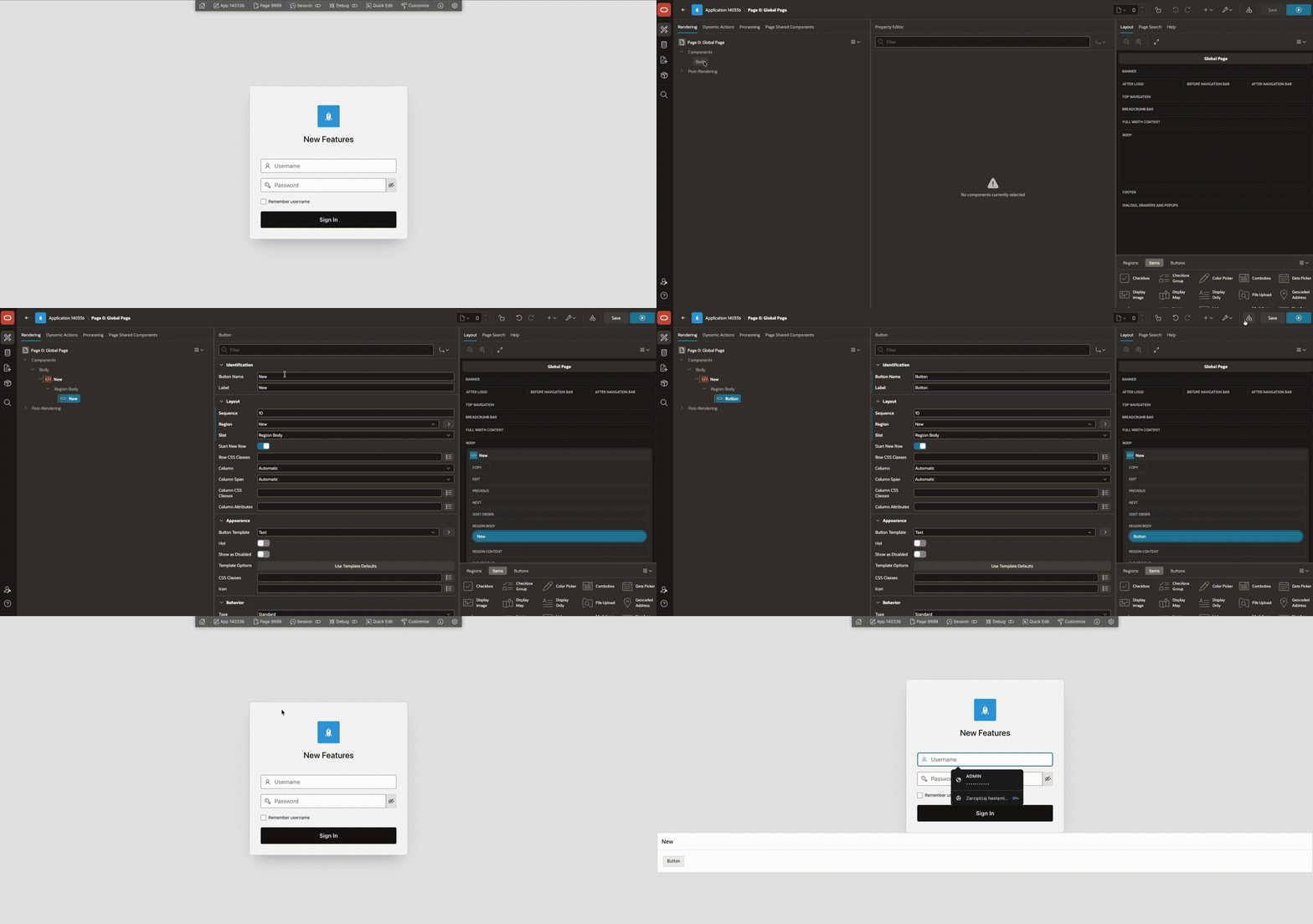
What if you completely close the application window?
As you can see, you’ve been redirected to the Home Page. So, as you can see, you can force different behaviors depending on your needs, but you can open the app directly from Page 0.
How many times have you tried to do something on a modal page, clicked Save and Run Page, and this window appeared:

Did you know that if you had a modal window open, you didn’t have to reload the page and open a new window, just press P and select Reload Frame? I recommend it if you’re still using previous APEX versions. I have the Polish version of the browser language enabled in the gif, but you’ll know visually where to find this option in Chrome.
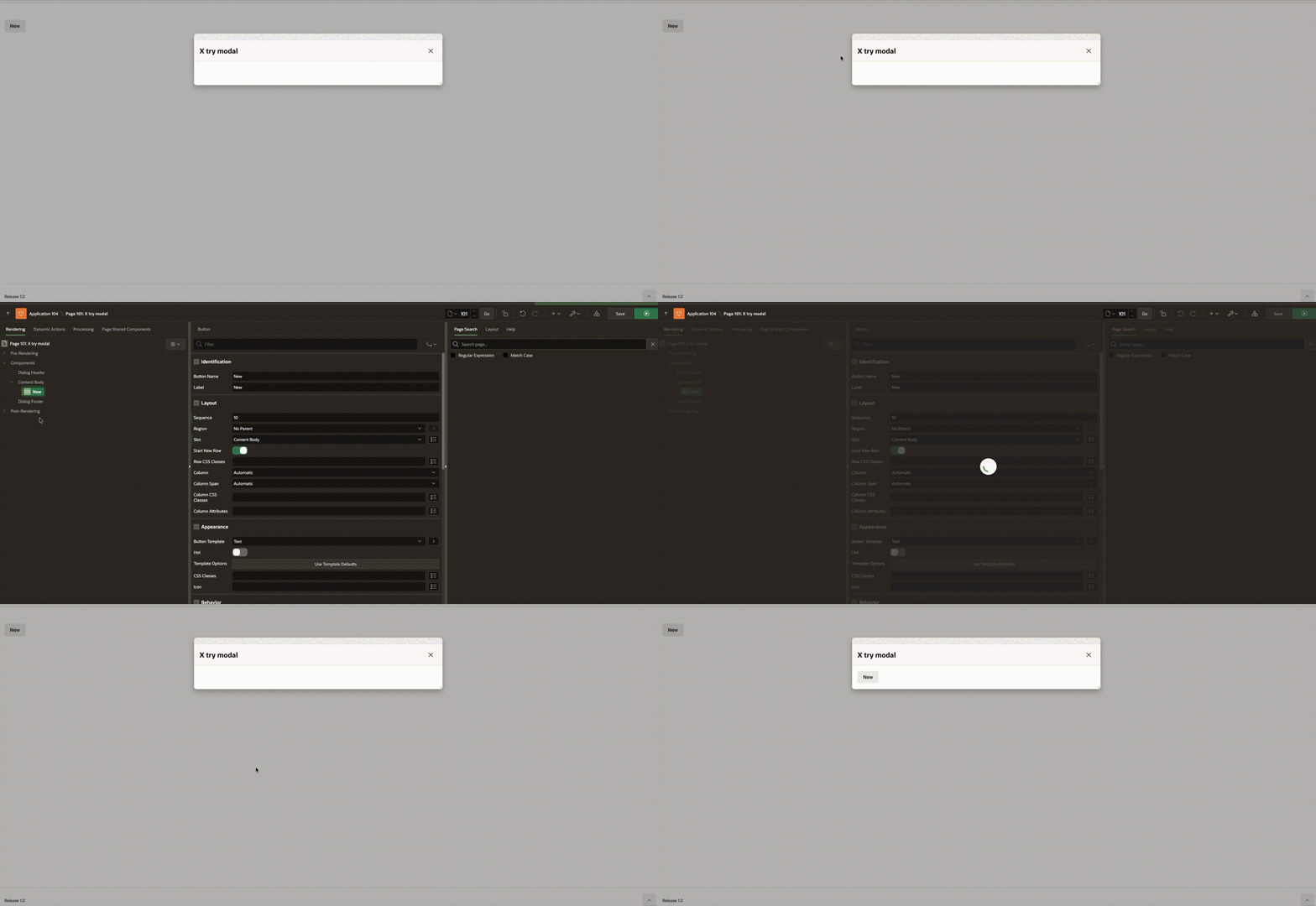
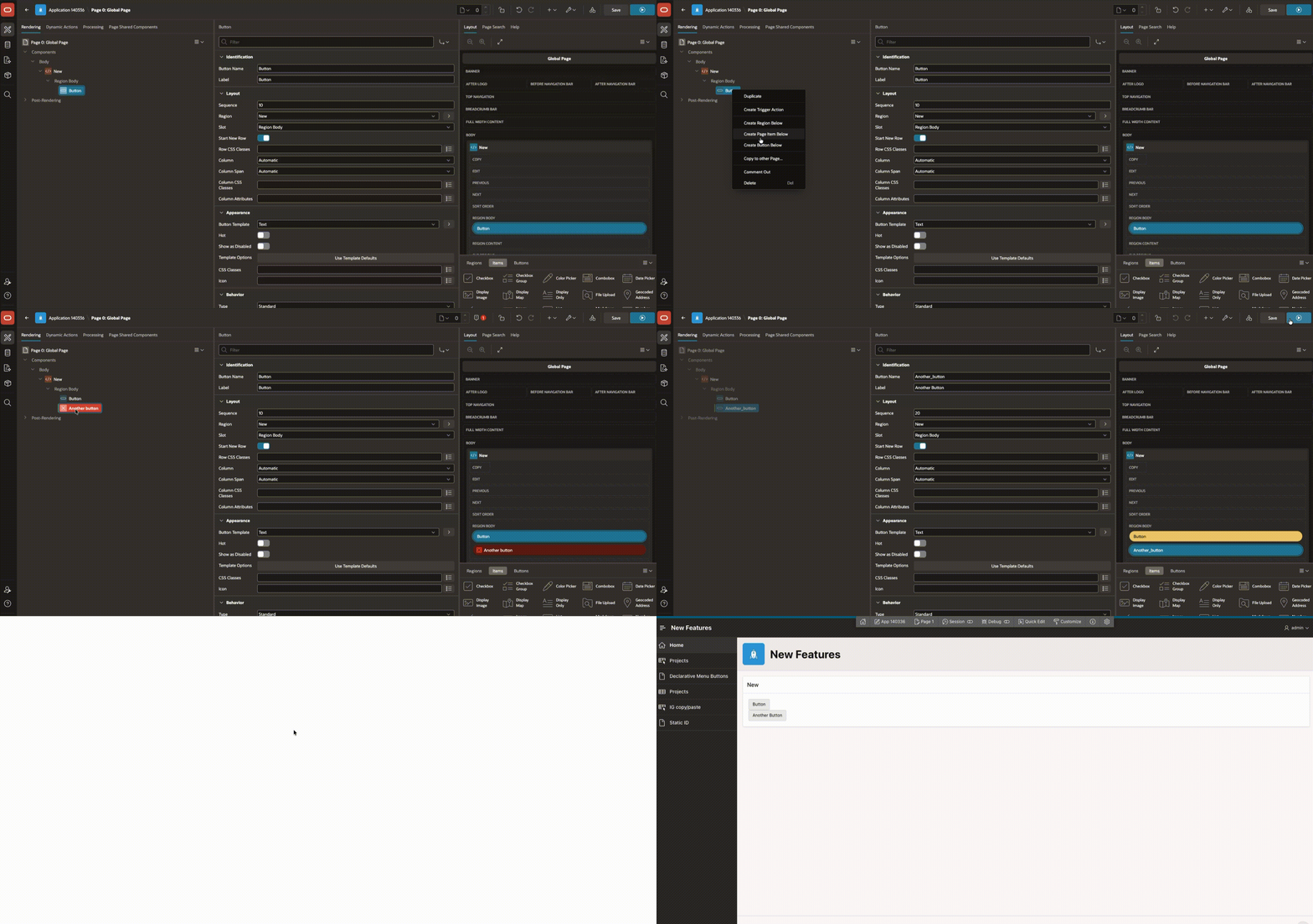
Let’s see how the Save and Run Page button behaves on a modal page.
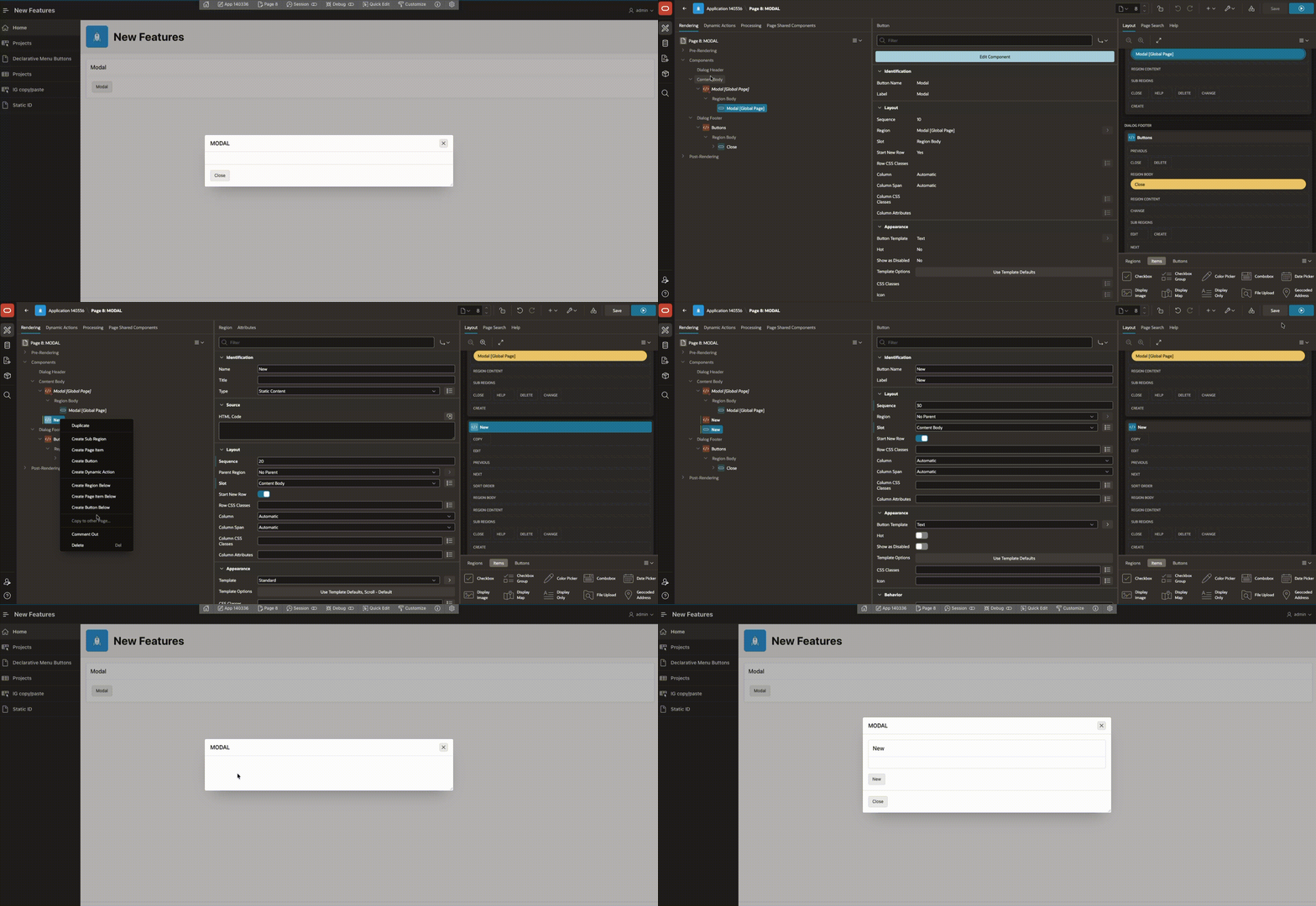
It works great! No more refreshing the page, clicking a button, waiting for a modal page to open. Just one click and you can see what you’ve changed on the page!
I also noticed an interesting behavior when you create a new button, namely you don’t have the Create Dynamic Action option, and here you have the Create Trigger Action option.
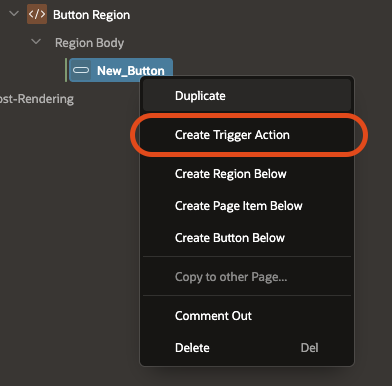
When you look in the Help section you get the following information:

If you want to add a Dynamic Action to your button, you need to change the Action to Defined by Dynamic Action:
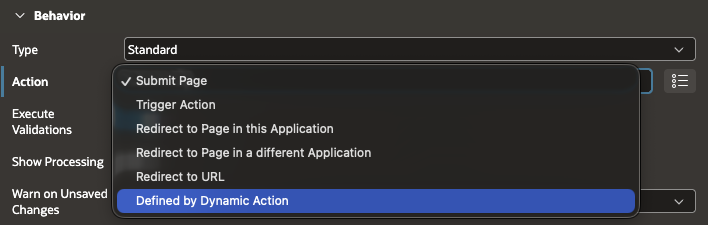
Now in the P mouse menu you can add a Dynamic Action:
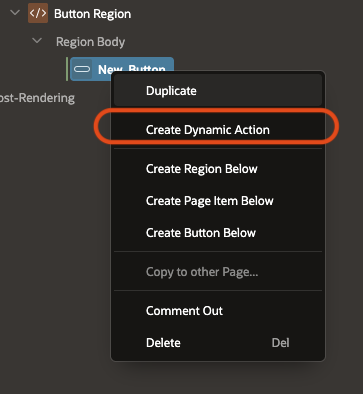
Different, strange and new behavior, but that’s how it’s presented now.
So let’s add another interesting functionality to our button that you can toggle with a single switch.
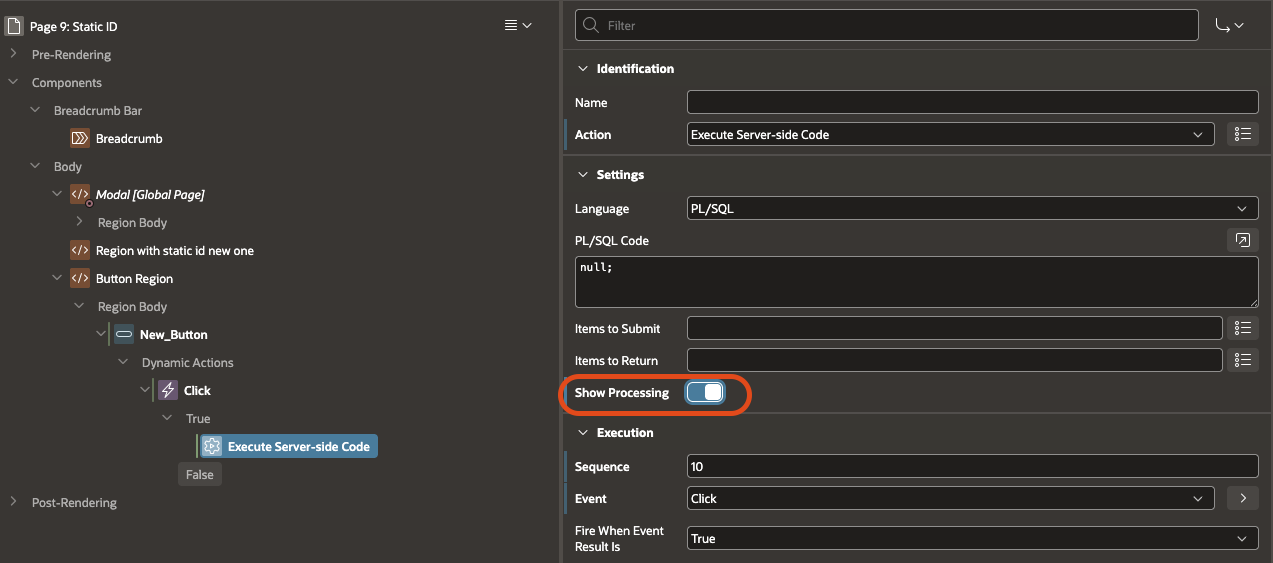
As we read in the documentation:

A very useful feature that can be seen on the GUI side:
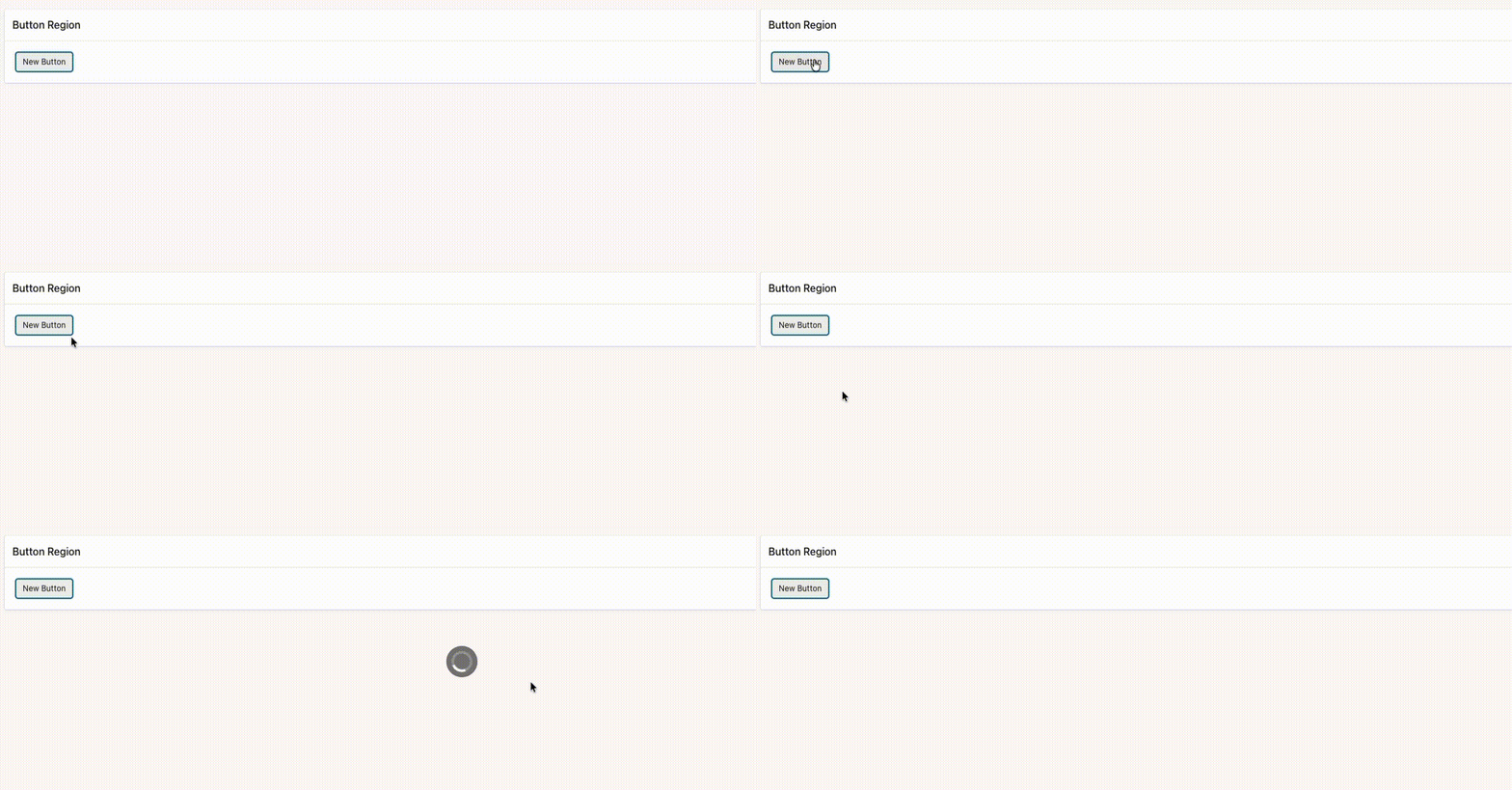
As you can see, a lot of small changes, but very useful, worth noting and simply changing the way you use APEX.