Welcome to part 2 of the series: non-AI components in APEX 26.1. The first is a feature I’ve read about numerous times on blogs and in the Oracle ideas section. I’m glad it was added in this version of APEX.
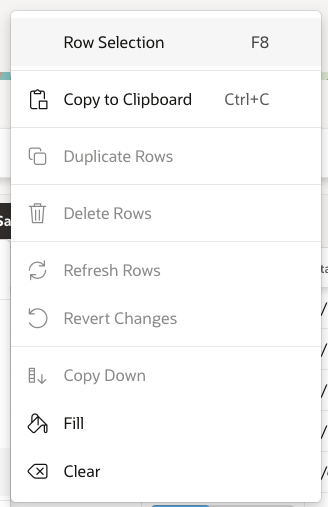
In previous versions, the Selection section looked like this:
In APEX 26.1 it looks like this and has received many improvements which I will describe in this article:
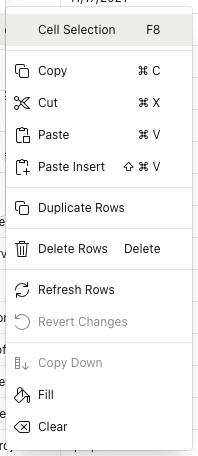
As we can read in the documentation, the following functionalities have been implemented:
I will show you some interesting applications that I managed to test, a detailed description of the implementation can be found at this link.
If we check the Actions button, we will see that a new section called Selection has appeared:
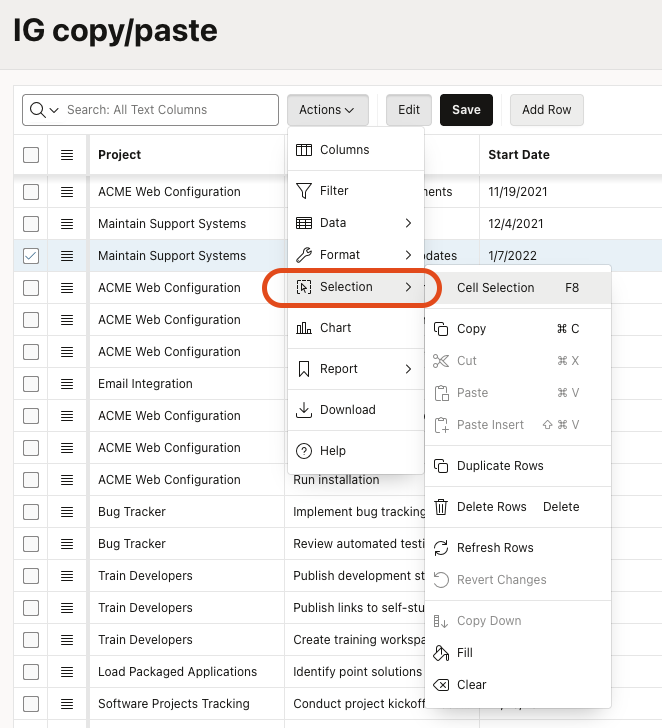
As you can see, many interesting options have appeared; let’s focus on a few of them. The first one is very interesting because you can change the option to either Cell Selection or Row Selection.
The one that’s written is NOT currently enabled! This may be confusing at first, but it’s logical. The option you see is simply enabled.
For example, if you have Row Selection selected, you can now select any Cell with the copy shortcut and paste it:
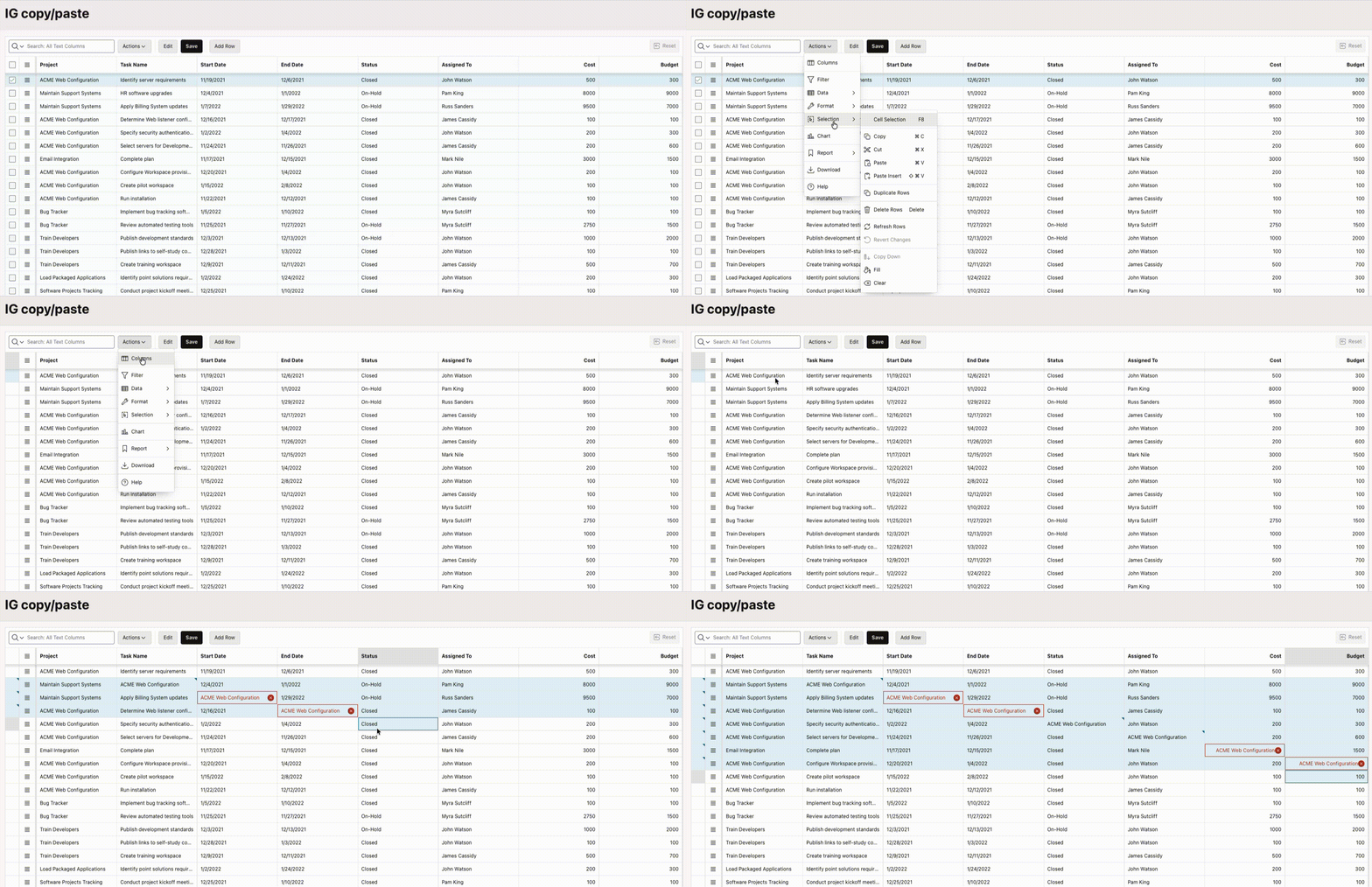
What is very interesting is that validations also affect the pasted cells.
Conversely, with Cell selected, you can paste the entire row:
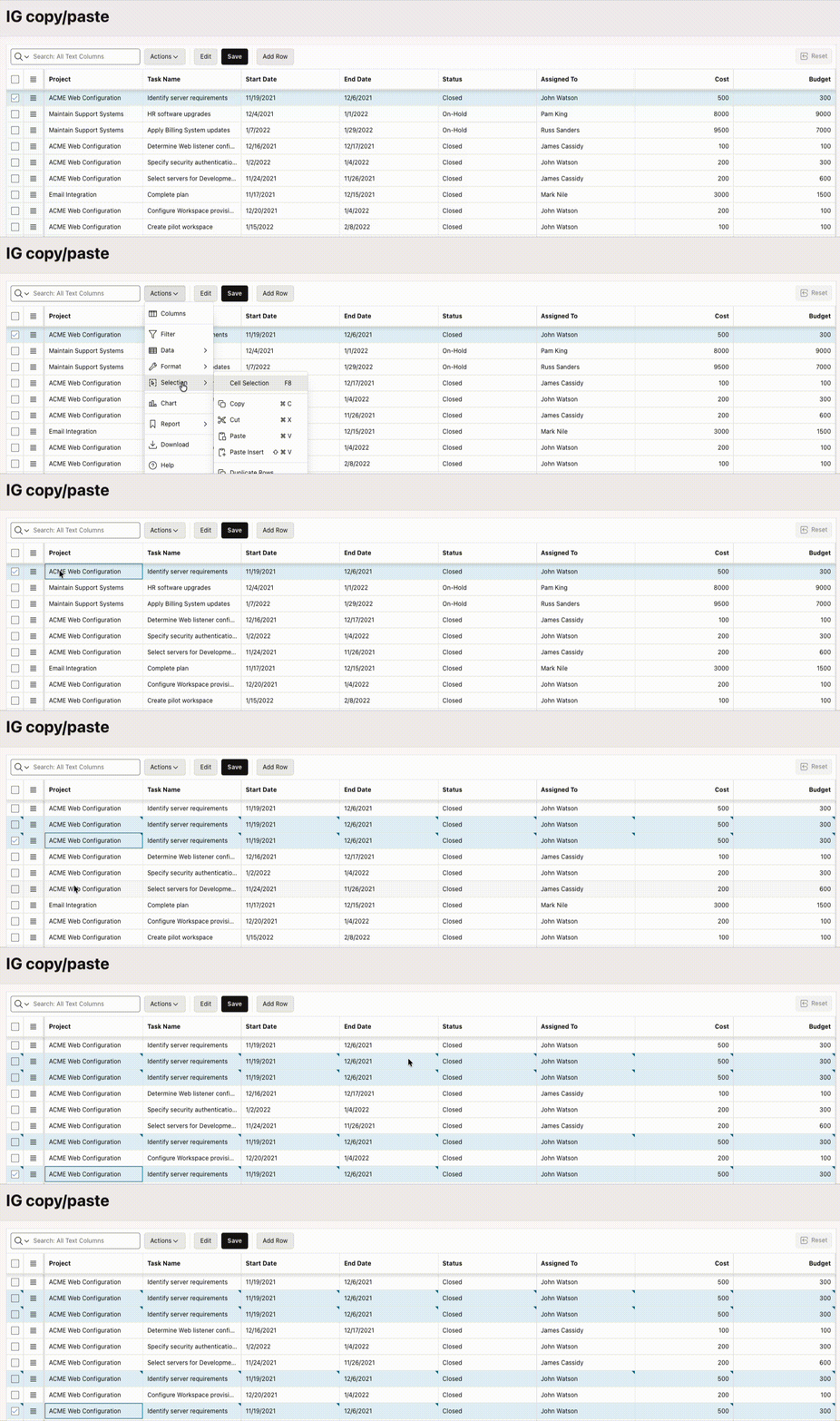
Another very interesting option is Copy Down. At first glance, it also seems a bit complicated. But a little practice and the functionality works flawlessly. Just make sure you’re in the option to copy either a Cell or a Row!
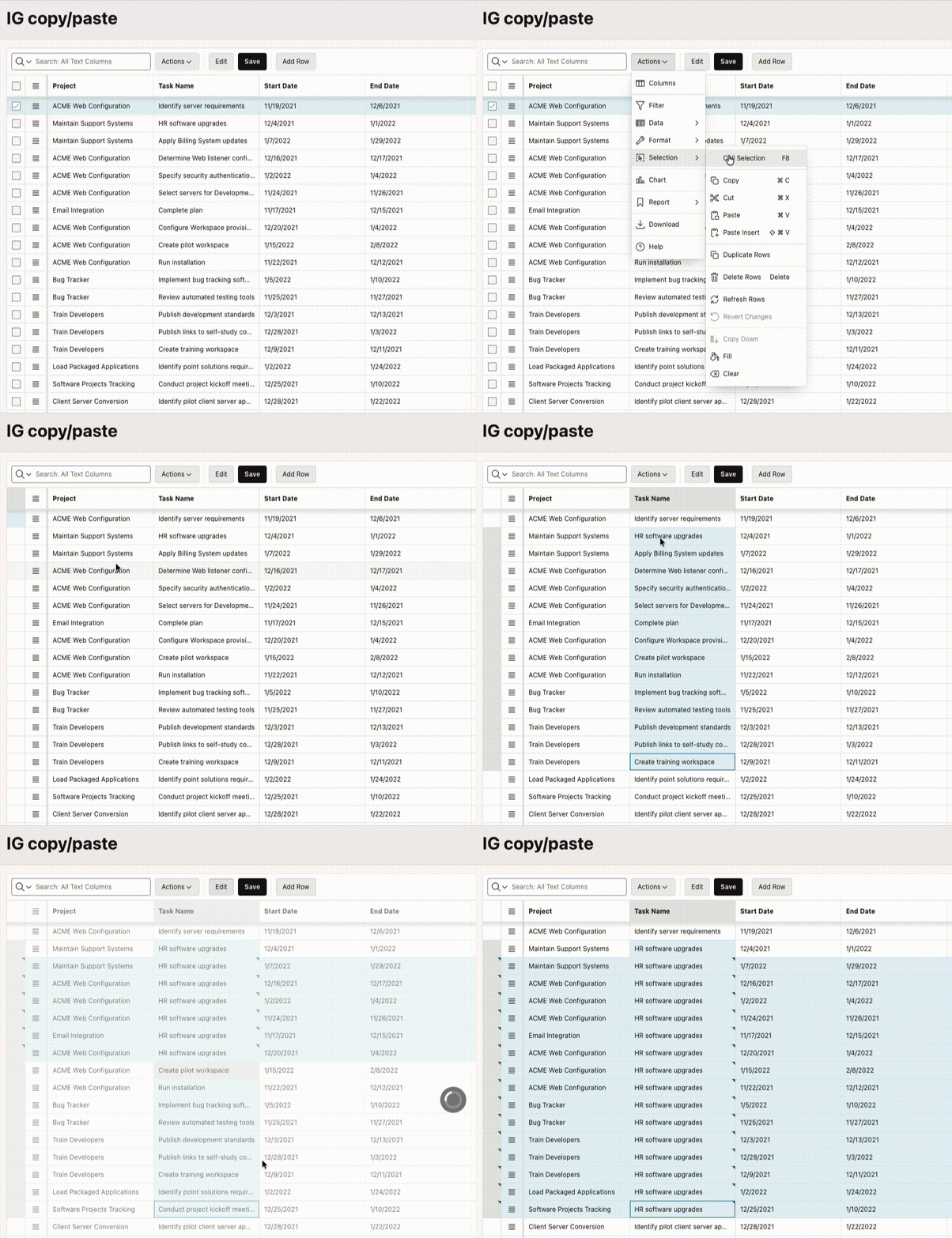
I’ll show you in a giff how it works for Cell first. You need to remember to enable this copy option. REMEMBER that the first column is the one that will be copied down. You select the rest of the cells using the Shift key.
HINT!: I haven’t found a way to select every 2/3 columns; I think it’s supposed to be one section below the other:
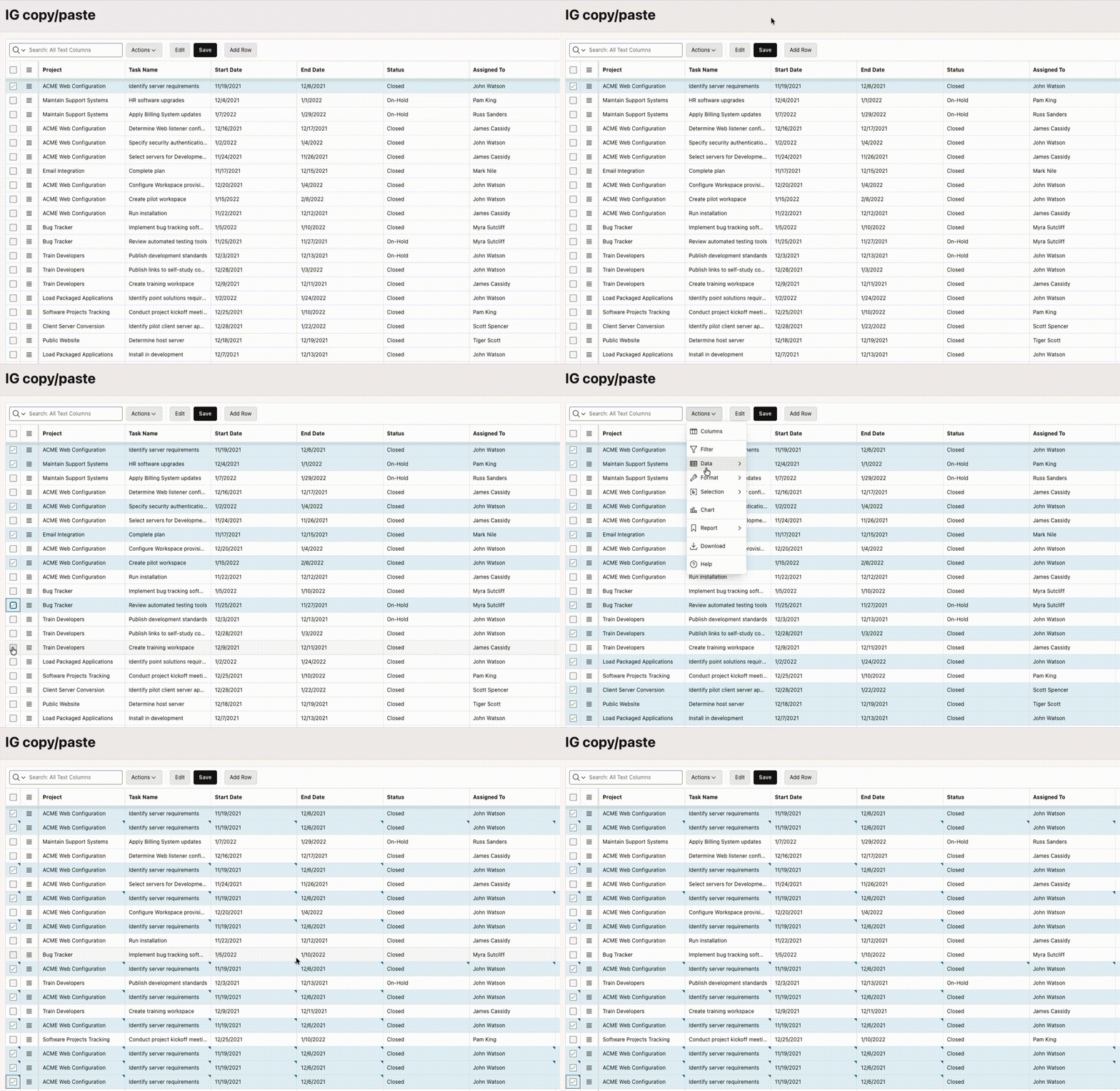
Regarding Rows, we can select rows that aren’t necessarily consecutive. Remember that the first row on the list will be the one that will be copied. Also, remember to select the option to copy the entire Row:
And now the crème de la crème of copying options. This functionality is very useful and practical. Imagine you have a spreadsheet (whether in Google or Excel). Now you can select the cells you’re interested in and paste values directly from them.!
Needless to say, if you’ve been working with IG for a while, sooner or later you’ll get a copy/paste question from the client.
Here’s what this functionality looks like:
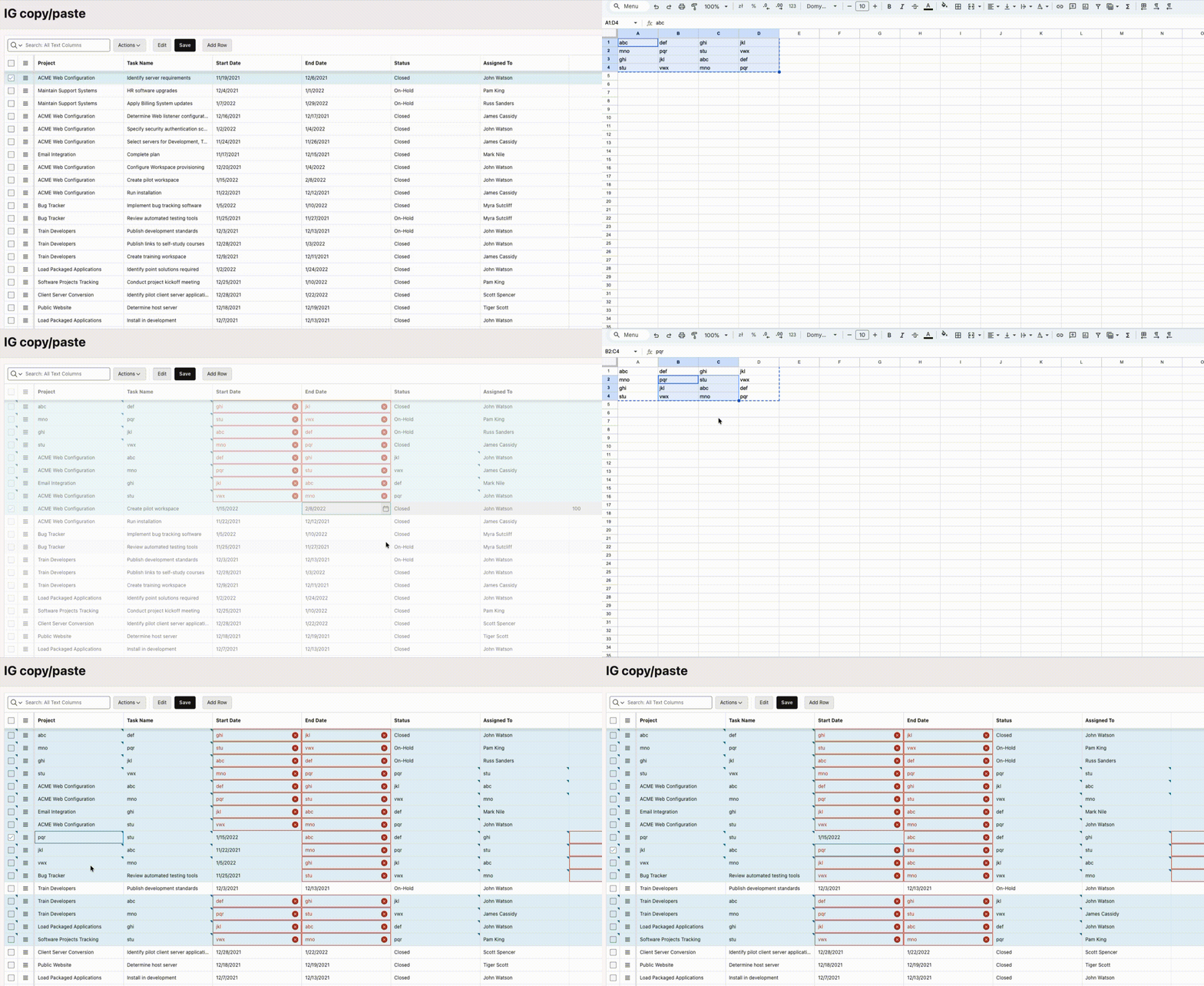
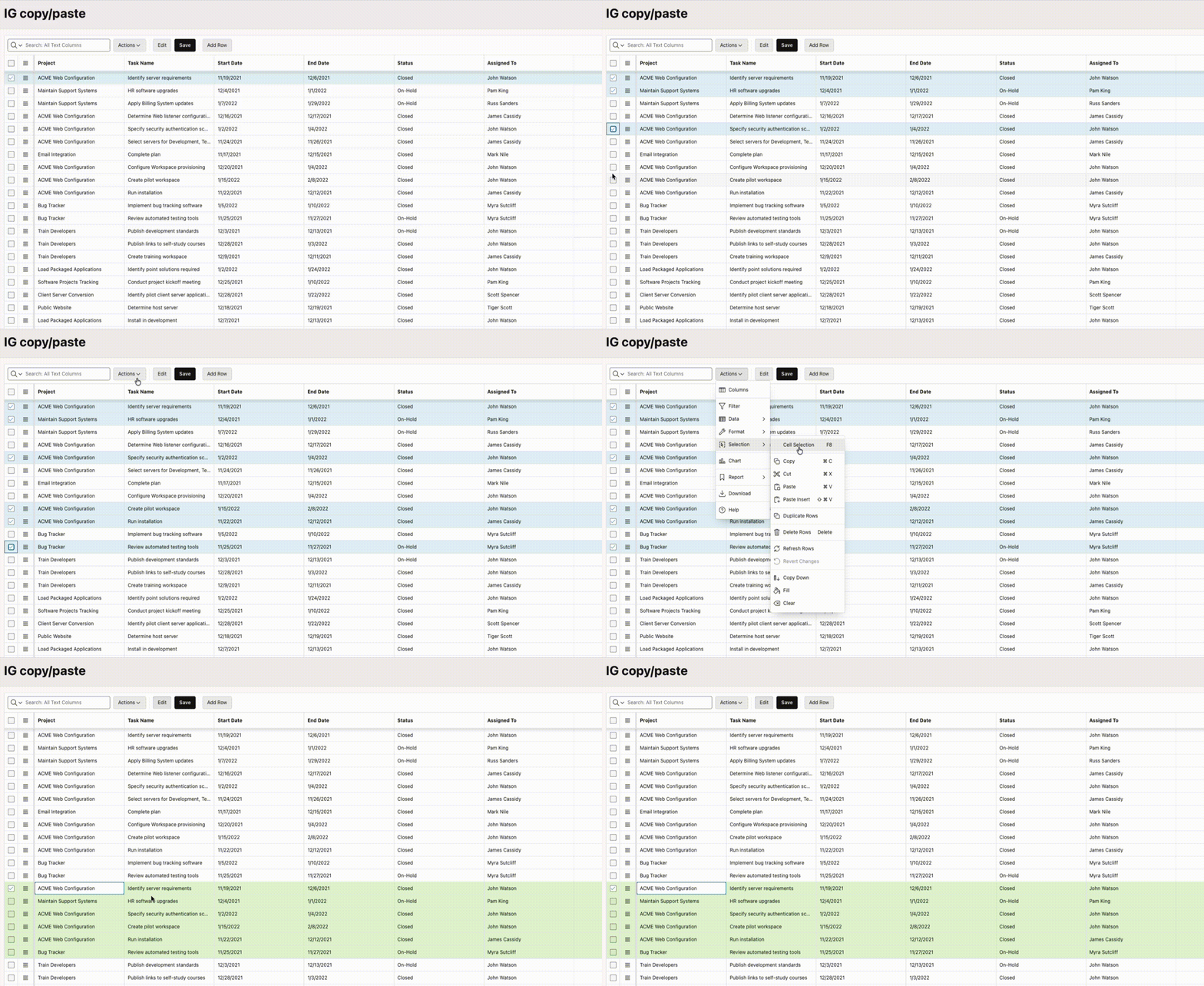
Another very useful feature is duplicating rows. I’m aware that this feature already existed on IG, but now it supports selecting multiple Rows. Practical, useful, and functional. By default, you need to remember to select rows (not columns), meaning you want to display Cell Selection (not Row 🙂 ).
Interestingly, what you should remember is that the pasted rows will appear under the last selected row:
Delete rows works in the same way. You can select multiple rows and delete them collectively:
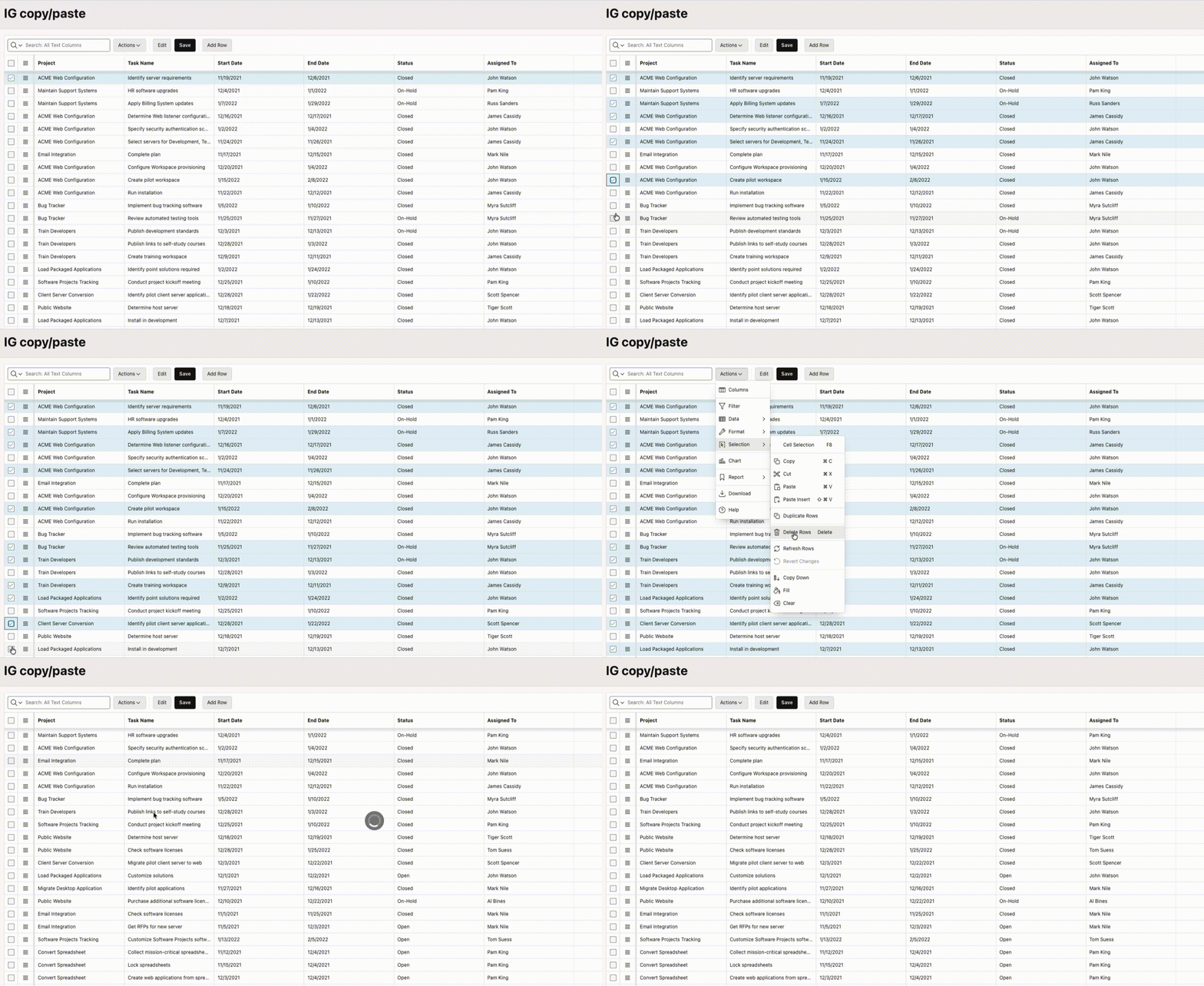
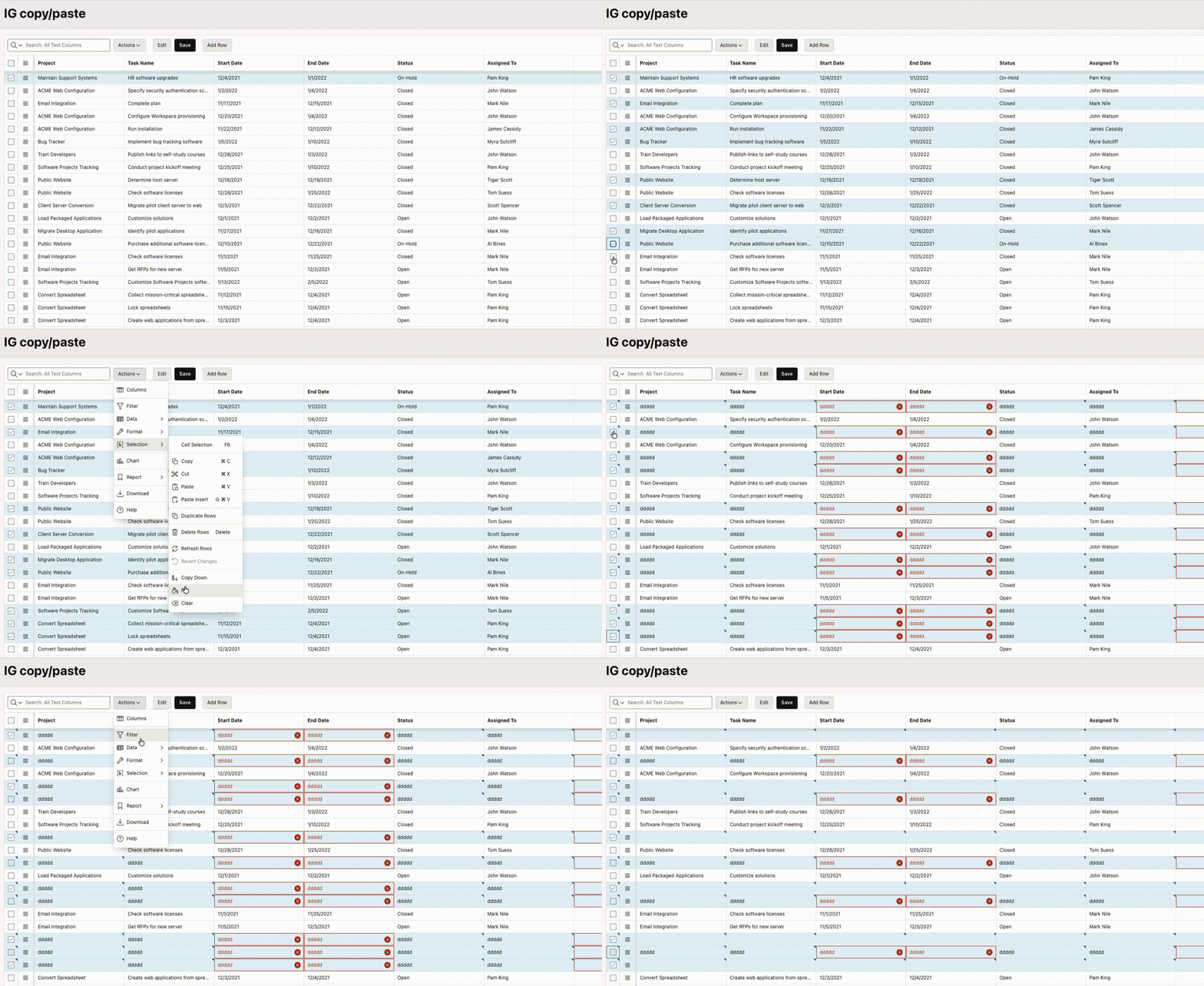
And the most important thing at the end, all these options except Delete I did only on the GUI side, remember that after saving the validation (dates, numeric fields) you need to save the changes on IG with the SAVE button, i.e. that’s what I did in the case of the delete option.
Another option similar to Excel is to undo changes -> very importantly: BEFORE SAVING THEM WITH THE SAVE BUTTON. But the feature is so nice and useful that it’s worth showing it. Interestingly, it can be used on multiple Rows at once:
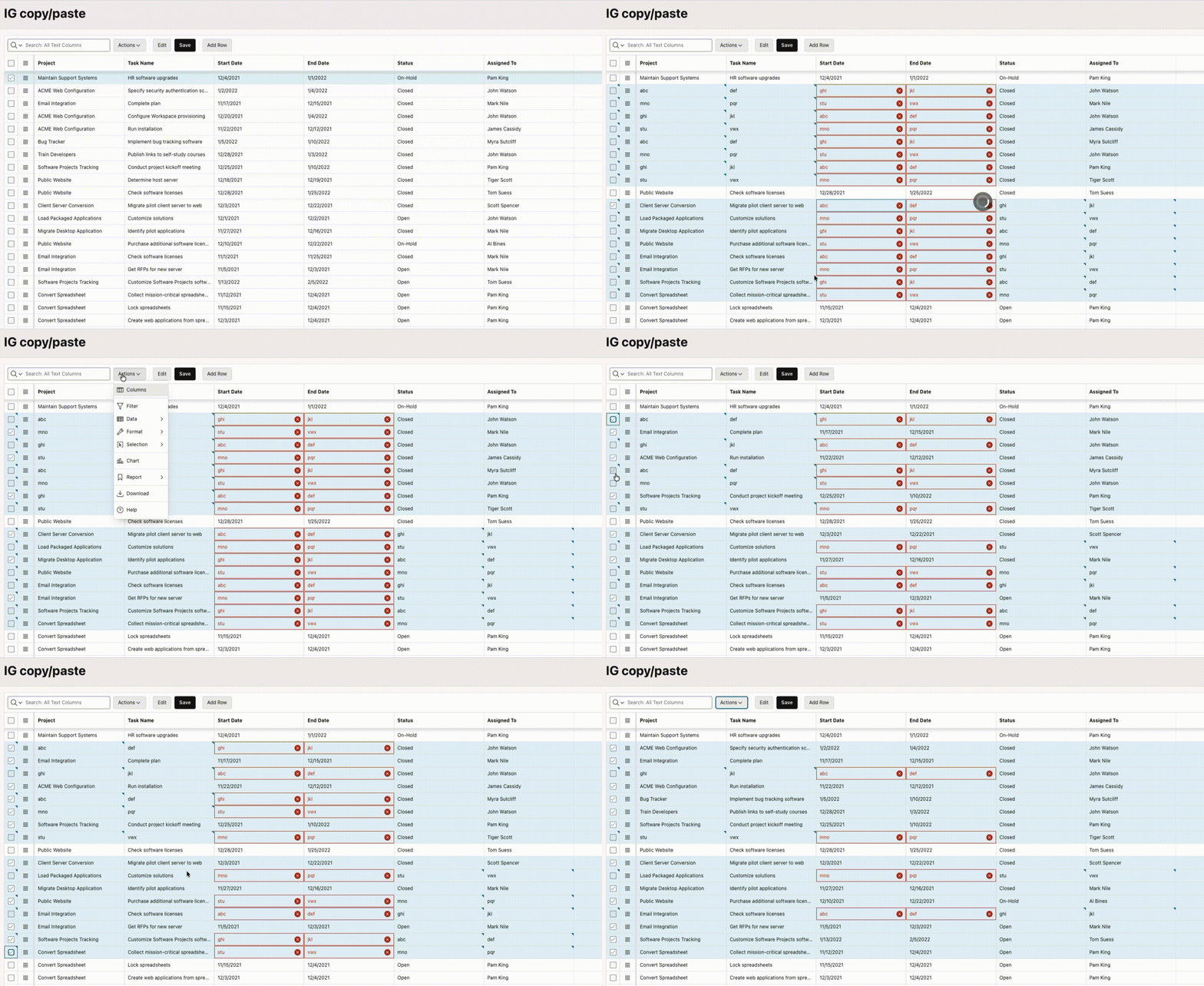
The last two options worth explaining are Fill and Clear. They work similarly for both Rows and Cells. I’ll show you how it works for Rows. It works similarly for Cells, but with Fill Down, you can’t select every 2/3 of a Cell.
And that’s how we managed to cover the entire Selection section of Interactive Grid. As you can see, there are a lot of useful new features.