Today we will focus on another part of the improvements that I managed to find in the documentation for the new version of Oracle APEX. There was a segment dedicated to Interactive Grid, let’s focus on the Interactive Report first.
In the previous version of APEX, when you created an Interactive Report and hovered over a column, the Appearance section looked like this:

However, one very important and nice option has been added to this section in APEX 26.1:

For example, you can specify multiple CSS classes separated by spaces. As we can read in the Help section:
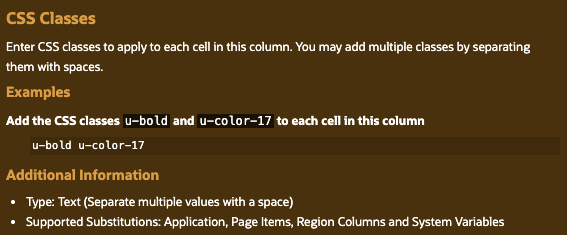
For the purposes of this simple exercise, I quickly created two CSS classes, applying both to one column and one to the other two:
.background {
    background-color: orange;
}
.text_color {
    color: brown;
}
Very easy to implement, on the GUI side it looks like this:
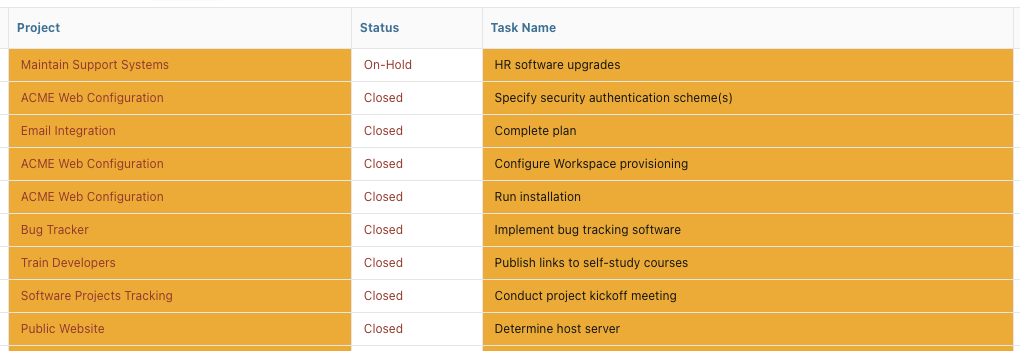
Well done APEX developers Team!
Another interesting option in the Interactive Report attributes is Maximum Rows to Display. If you have a huge report that takes a long time to load despite enabling Lazy Loading, or you only want to display the first part of the report, this option is for you. In previous versions of APEX it looked like this:
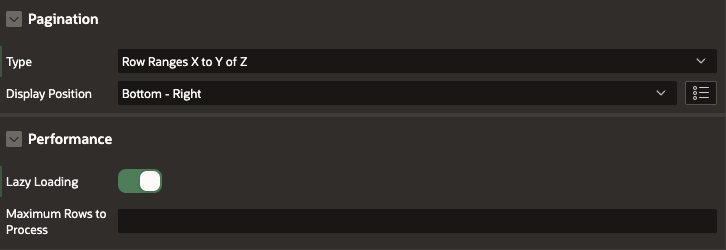
In version 26.1, this section has been redesigned and looks like this:
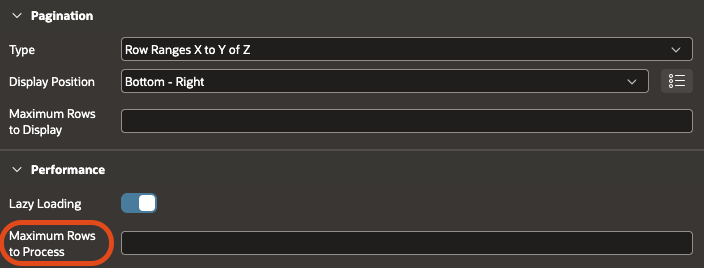
Let’s test this function by entering a small number, like 7. What can we see on the GUI side? Two new messages appear next to our report. At the top, under the Actions button, the following text appears:

And in the lower part of the report with, for example, the Row Ranges X to Y of Z option enabled:

We can also see some interesting behavior in App Builder: depending on the value entered in the Maximum Rows to Display section in the Performance section, the Maximum Rows to Process option appears and disappears. This is a smart move, as these options are mutually exclusive:
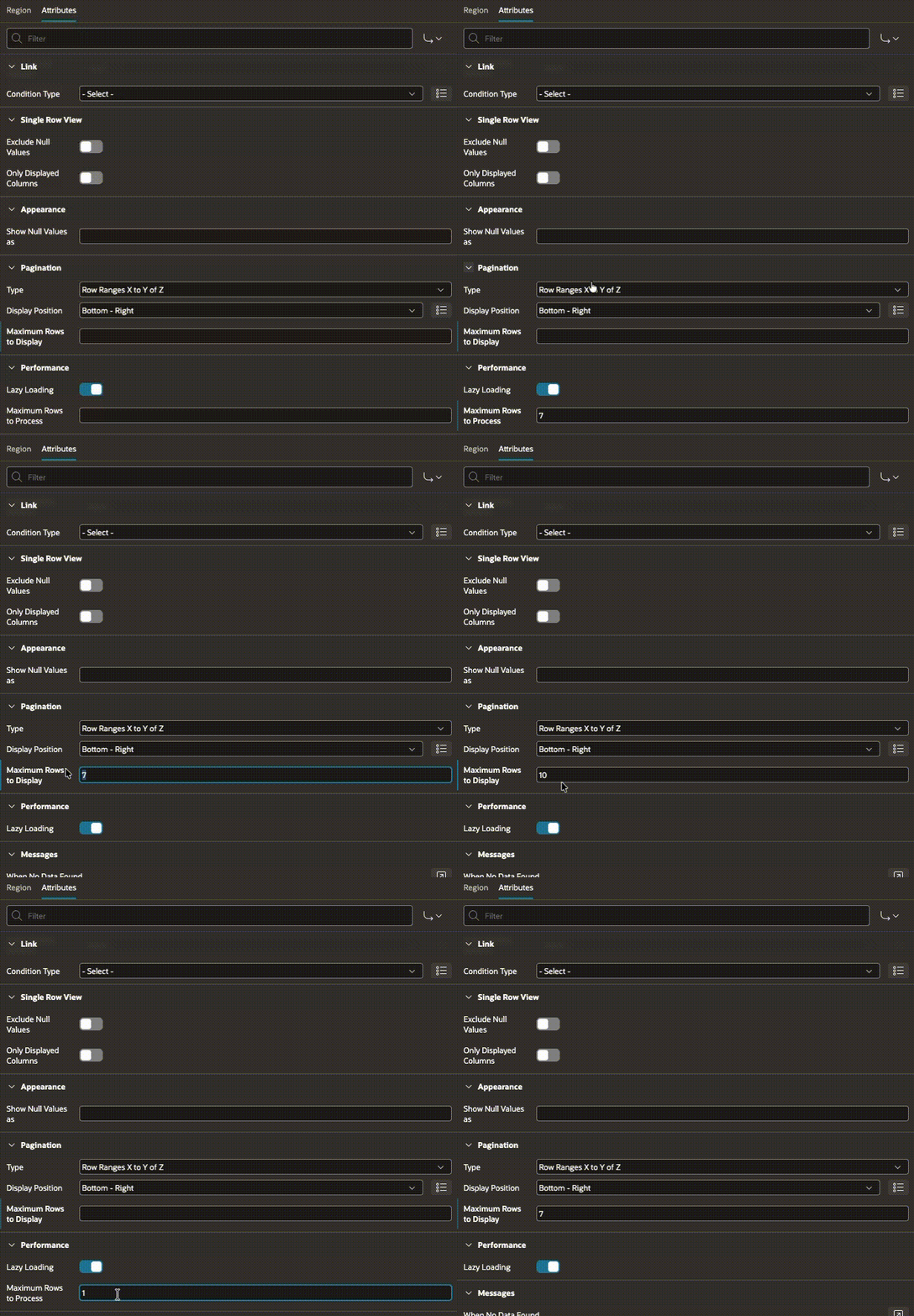
Another interesting thing is that on the GUI side, under the button Action -> Format -> Rows per Page and selecting the All option, our report will still display only as many rows as we declare in the Maximum Rows to Display section.
[GIF 10]
A very interesting addition and improvement.
Another great improvement borrowed from Interactive Grid and, interestingly, from a plugin created by a talented developer: Adam Kierzkowski from Pretius and hosted on apex.world.
I highly recommend this plugin, by the way, because it has many interesting options, such as adding column values, for example, in addition to APEX Items and also to APEX Collections.
But let’s focus on how this option was implemented natively in the Interactive Report in APEX 26.1.
First implementation. When creating an Interactive Report and clicking the Columns section or directly on a column, we have a new option:
Once selected, a new virtual column appears. Systemically, you can’t rename it if it’s in the Row Selector type. You can place it anywhere after any column, but in the GUI, it will always be in the first position, unless you have enabled Link Column -> Link to Single Row View in the Interactive Report Attributes, in which case the Row Selector will be in the second position and the Single Row View will be in the first position.
Let’s see what options we have for this newly created column:
Let’s discuss the Row Selection section:
With multi selection you can select multiple rows, the icon looks like a checkbox:
When this option is enabled, the icon appears, but interestingly enough, when you click it, it itself (like on the Interactive Grid) does not get selected when selecting all rows:
For this function, I created an additional Page Item to hold the Primary Keys values. On the GUI side, it looks like this:
Great functionality that offers many programming possibilities, once again, well done to the Oracle APEX development team.
Another very useful feature is the addition of a dynamic action called Invoke Interactive Report Dialog. Let’s see what capabilities it offers:
It’s actually a shortcut to all the useful functions hidden under the Action button in the Interactive Report.
I prepared 3 of them:

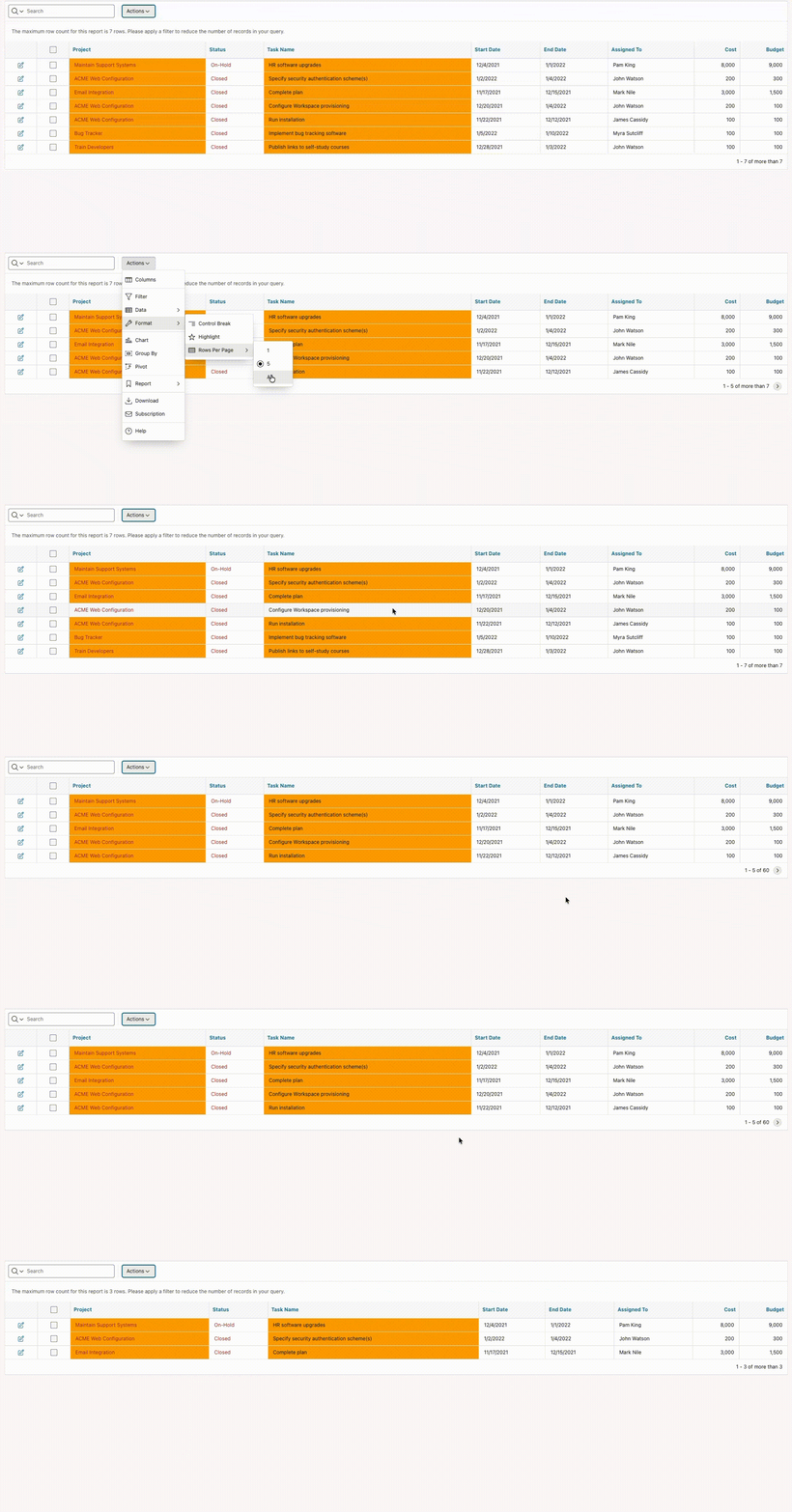
As you can see, many interesting functionalities can be added in one Interactive Report.