The Oracle APEX Workflows functionality was introduced in version 23.2 back in November 2023. Even though two years have passed since then, I kept wondering whether this solution could actually bring order to complex processes that used to rely on Server-Side Conditions and manual status management. I was also concerned about hitting a wall with issues I wouldn’t be able to solve. This hesitation effectively blocked me from implementing this feature in commercial projects for my clients.
The breakthrough came over a year ago when I finally decided to build the first client application based on this mechanism. Looking back, it was a great decision. Beyond organizing processes and expanding APEX’s capabilities, APEX Workflows provides a Workflow Diagram. This allows you to easily check the current stage of a workflow and see which steps are remaining.
Over the past year, I have learned a lot about APEX Human Tasks and APEX Workflows. With this blog post, I want to kick off a series where I’ll discuss the challenges my colleagues and I encountered during development. Today, we will focus on version management.
This article is intended for those familiar with APEX Human Tasks and APEX Workflows. I assume you know how to create an APEX Human Task, build an APEX Workflow, and create a Workflow Console or Unified Task List page. If you haven’t had the opportunity to use these great features, I encourage you to check out the available blog posts on the topic, documentation, or install the sample application called Sample Workflow, Approvals, and Tasks from the Gallery.
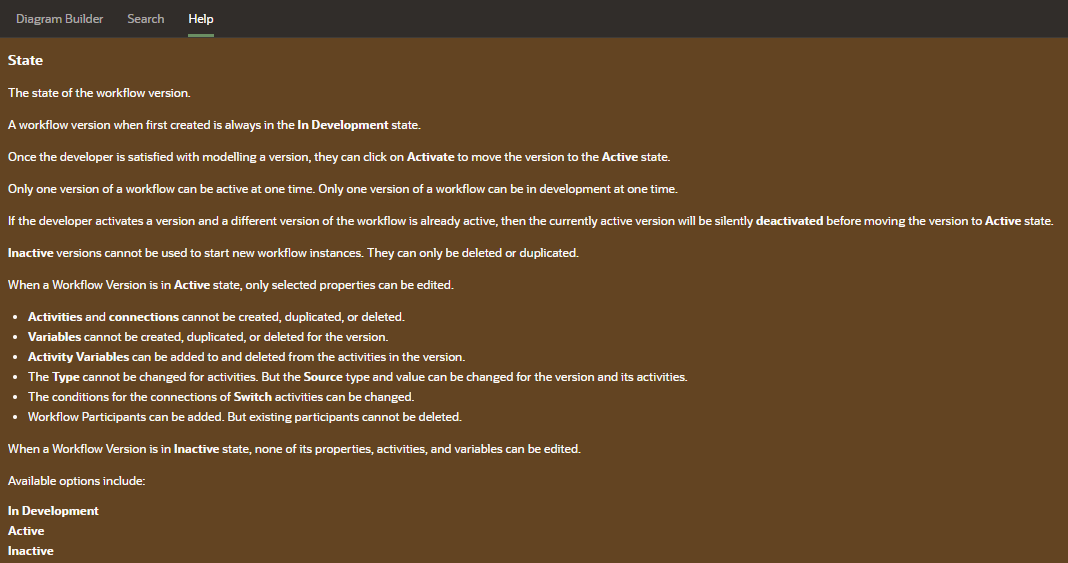
If you have ever built any APEX workflows, you probably know that this functionality natively supports versioning. At any given time, only one version of a workflow can be in the In Development state, and only one can be in the Active state. However, you can have multiple versions in the Inactive state.
The standard workflow development process looks like this:
Note! Deactivating a version (e.g., v1) does not automatically terminate the Workflow processes already running on that version. Workflows initiated under that version will continue to run as long as the version is not deleted. New processes, however, will be started using the latest Active version of the workflow.
Below is a screenshot from the Help section describing the various states a Workflow can take.
Imagine the following development scenario:
Now we face a specific situation: v3 is active in production. All new processes are initiated using this latest active version. Suddenly, a process that was started months ago on version v1, which is still running and has not yet completed, faulted due to a bug in the process.
If I were to visualize this case using a Timeline, it would look like this:
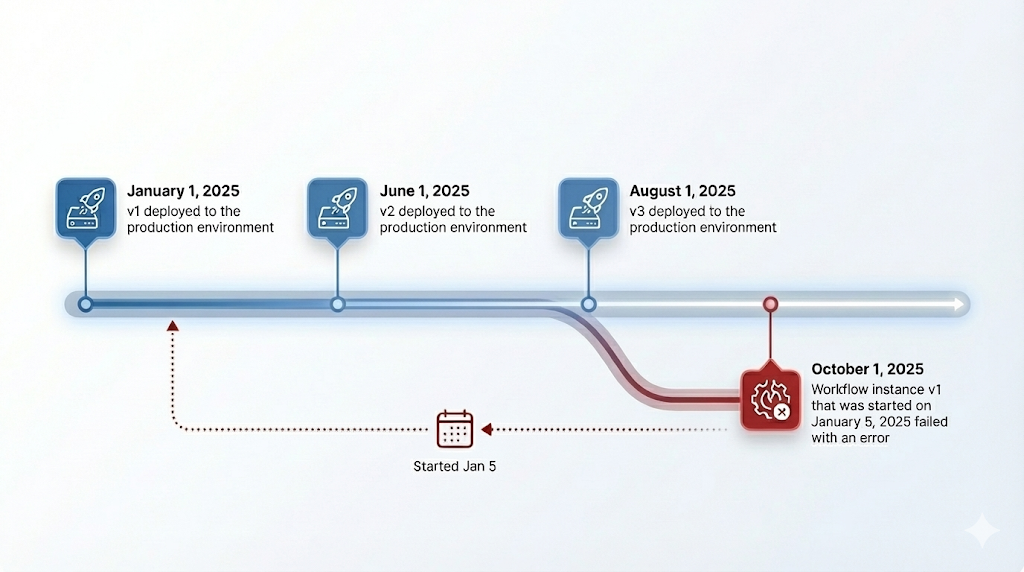
Our challenge is this: How can we fix a workflow in version v1 when the currently active version is already version v3?
For this article, my workflow process consists of many steps, and the time from start to completion can span several months. During this process, one of the steps involves checking an amount—whether it’s an order value, a salary, a planned budget for next year, or anything else you can imagine.
There are two logic paths:
Let’s examine how my process looks across the different versions.
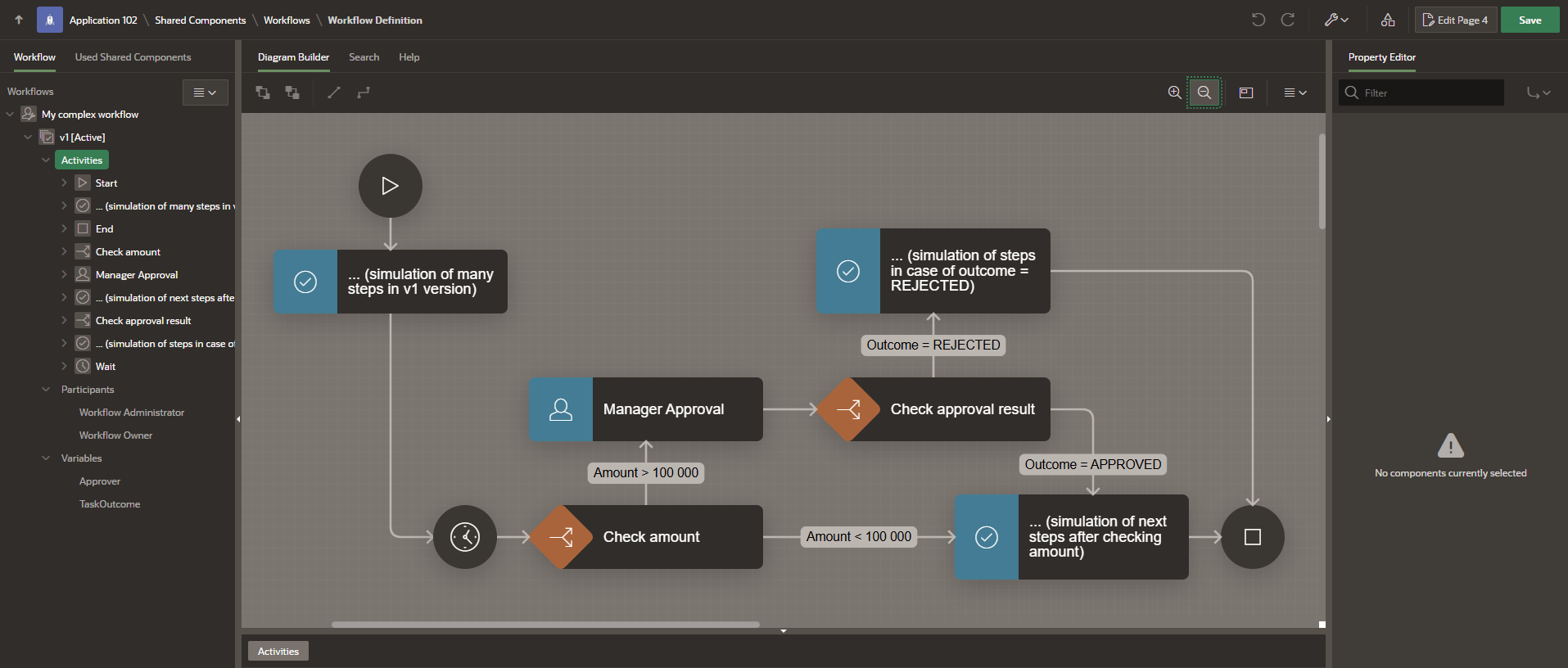
Let’s take a closer look at the Check amount activity.
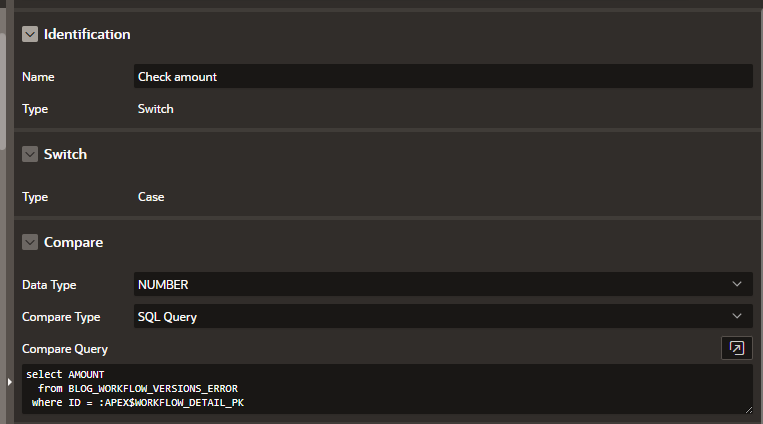
This is a Switch activity that fetches the Amount value from a table linked to our process. Based on this value, the process moves either “Up” or “To the right.” Below are the screenshots of the connections.
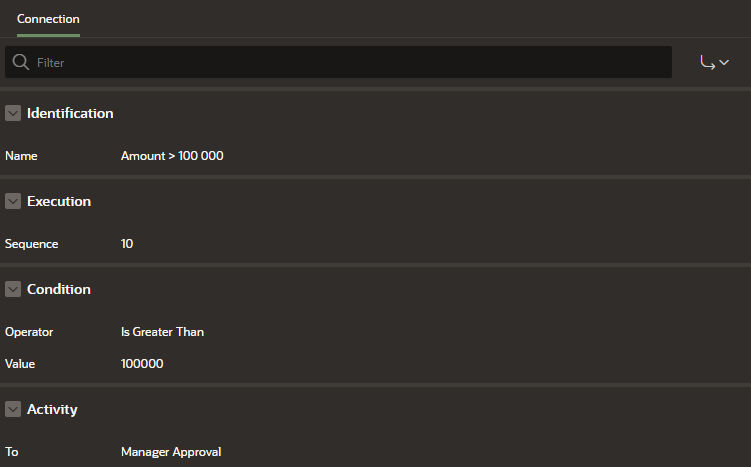
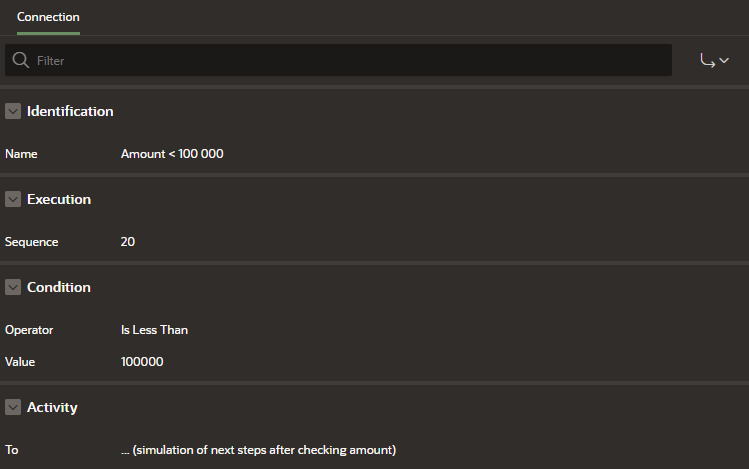
Notice that the connections do not handle the situation where Amount = 100 000. This is a serious bug that, in my example, will only be noticed much later—after version v3 has already been deployed to production.
Let’s start testing. After starting the workflow for amounts of 1 000 and 200 000, the process completed successfully (after manually continuing the Wait activity using the APEX_WORKFLOW.CONTINUE_ACTIVITY API).
I also started a workflow for the amount of 100 000, which is currently sitting at the Wait activity. I’ll leave it in this state and begin work on version v2.
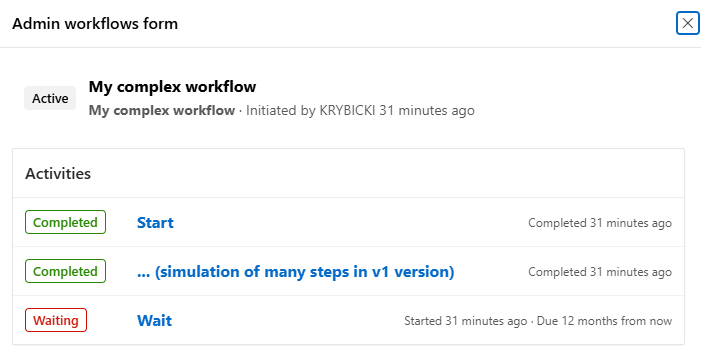
The screenshot above shows the Workflow Console Detail page, which was automatically generated as a component called Workflow Console.
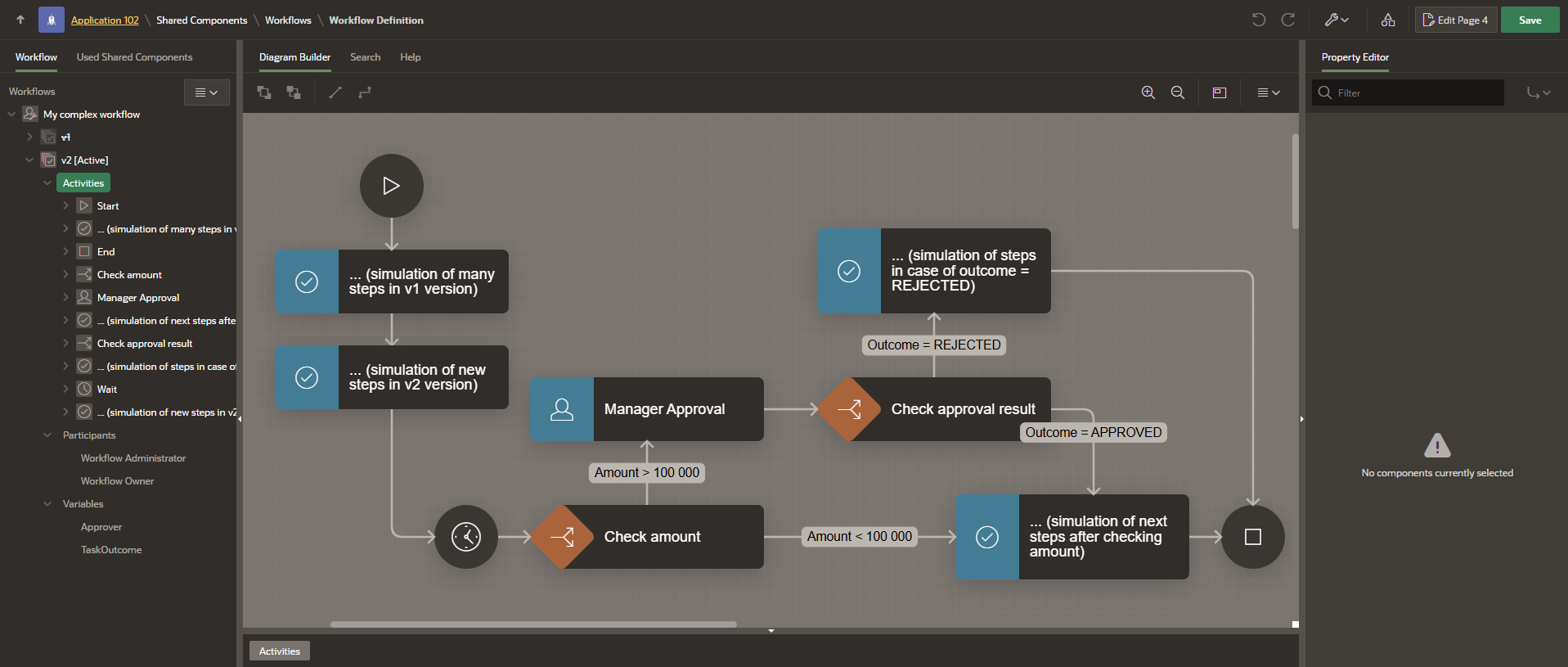
The difference in v2 is the addition of a new step: “… (simulation of new steps in v2 version)”.
After running the v2 workflow for amounts of 5 000 and 300 000, the process completed successfully.
The process for 100 000 (which was started while v1 was active) is still waiting at the Wait activity. This simulates a situation where one specific process takes much longer to execute than the others.
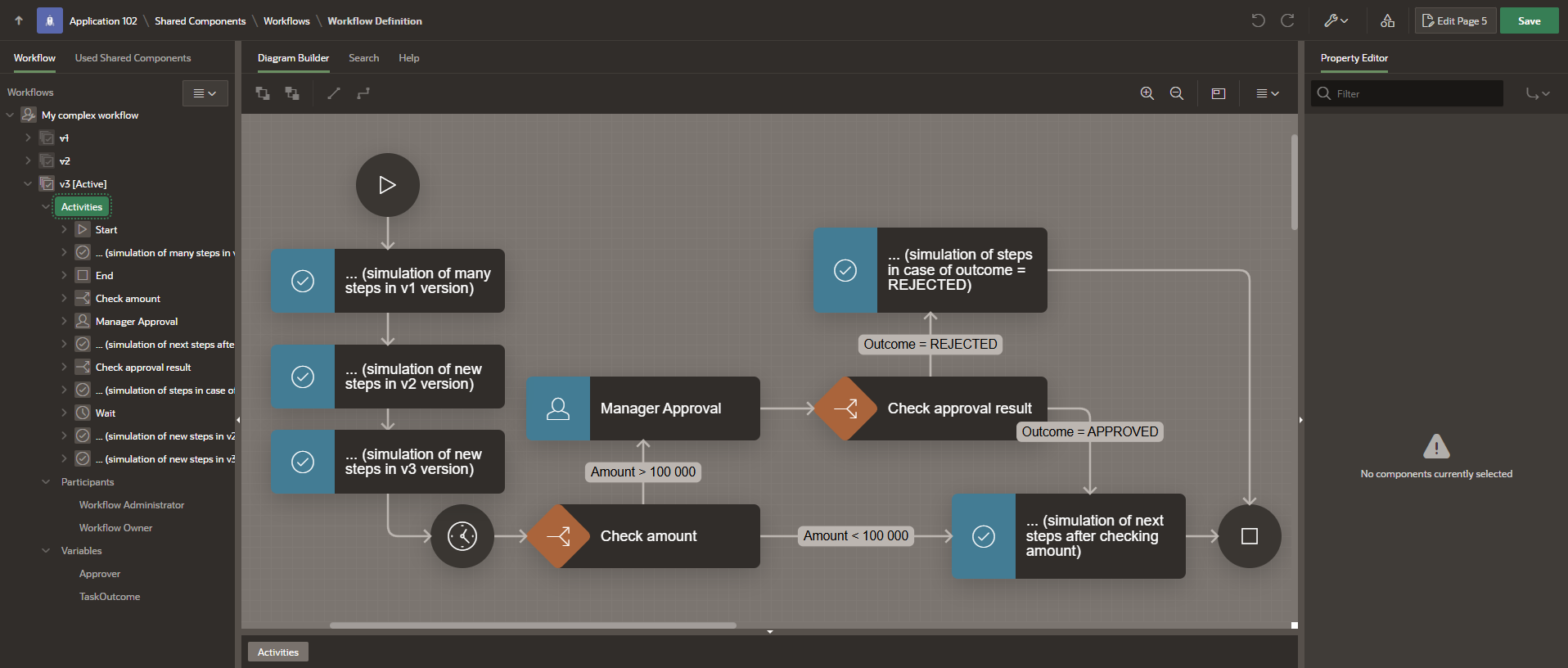
In v3, I added the step “… (simulation of new steps in v3 version)” before the Wait activity.
Running v3 for amounts other than 100 000 was successful. Now, it’s time to continue the v1 process for the 100 000 amount and finally face the bug.
As expected, after manually continuing the process initiated in version v1 for the amount of 100 000, an error occurred, as seen in the screenshot below.
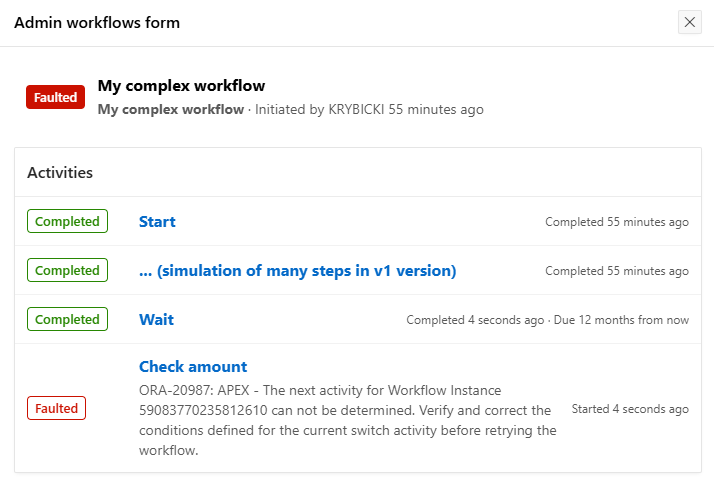
I now face an issue: the Workflow is unable to determine the next step after attempting to exit the “Check amount” activity. Retrying the workflow at this stage will not help. I have two options:
In this scenario, I am assuming there are still active, ongoing processes in versions v1, v2, and v3, so my goal is to patch the bug across all existing workflow versions.
My current workflow versions are in the following states:
I will now proceed to fix the bug in versions v1, v2, and v3. The fix consists of the following steps:
After completing these steps for all three versions, the bug is fixed across the board. v1 and v2 remain in the Inactive state, while v3 is set back to Active. The Connection leading to the Manager Approval activity now looks identical in every version:
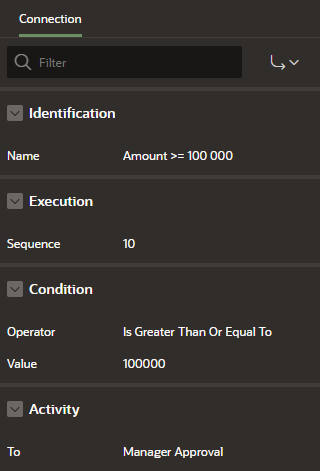
Now, all that’s left is to export the application and deploy it to the production environment.
When installing a new version of the application on a target environment, active workflow instances are automatically suspended. This article describes exactly why active workflows are suspended, how we can find them, and how to resume them. It is worth preparing a mechanism that allows you to activate them with a single click or fully automatically.
In a nutshell, this behavior is a safety feature of the Oracle APEX engine. When you change the underlying metadata of a workflow, the engine suspends running instances to prevent them from executing invalid logic. Once the “patch” (like our version fixes) is deployed, you must explicitly signal that these instances are safe to continue.
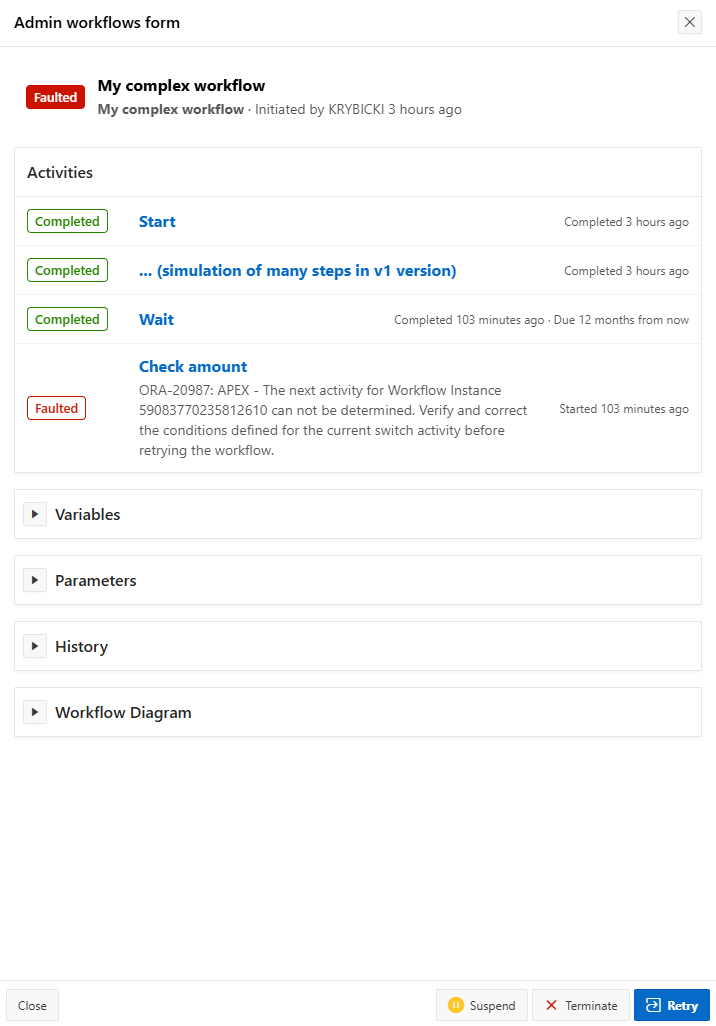
The final step is to verify the fix we prepared. After deploying the patch, my process from version v1 is still in the Faulted state, as shown in the screenshot below.
I click the Retry button, and upon re-entering the workflow details, I can see that the process has moved forward and the Approval Task has been successfully created.
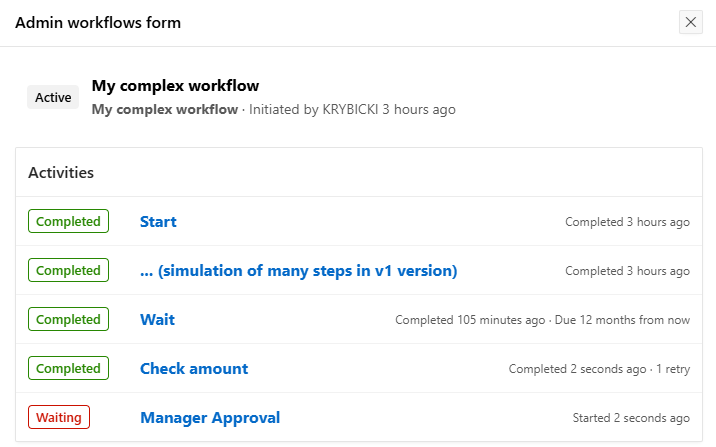
The fix works!
Managing long-running processes in Oracle APEX requires a strategic approach to versioning, especially when hidden bugs surface months after a version was created. This post demonstrated that while APEX allows only one Active version at a time, we are not “locked out” of fixing older, inactive versions.
In the next blog post, I will describe how to create parallel APEX Human Tasks in a workflow. Currently, the workflow engine does not natively support creating multiple APEX Human Tasks at the same time (although I heard the APEX team plans to handle this functionality somehow in upcoming releases).
I will show you the workarounds I used to achieve parallel Human Tasks and how to manage the synchronization of these tasks before moving to the next workflow activity.
That’s it for this article. If you’re interested in similar content, check out some of my other publications on the Pretius blog: